
Install the Windows player
Do the 4 steps below in this order. For an Android device, refer to Install the Android player.
-

Install the player
- Download the MediaMyne player installer.
- Start the installer.
- Follow the instructions on the screen.
-

Activate the player
After the installation, the player starts automatically. It shows an activation code.
- Write down the activation code.
- Send the code and a description of the location of the player to support@mediamyne.nl. The MediaMyne team activates the player.
NoteMediaMyne Support can set up your account so that you activate players yourself. If this is set up, refer to Activate a player.
-

Install TeamViewer
With TeamViewer, MediaMyne Support can control your player remotely. This lets us give you the best support.
-

Set up the watchdog
Windows only
The player operates 24 hours a day, 7 days a week. Sometimes a problem can stop the player. The small app RestartOnCrash checks continuously that the player operates. If the player stops, the app starts it again. We recommend that you install this app.
- Download and install RestartOnCrash.
- Make sure that the new player operates.
- Open RestartOnCrash in the system tray, at the bottom right of the screen.
- Click Select a running application.
- Select the process tauri-player.exe.
- Do a test: close the MediaMyne player. Make sure that the player starts again automatically after approximately 20 seconds.
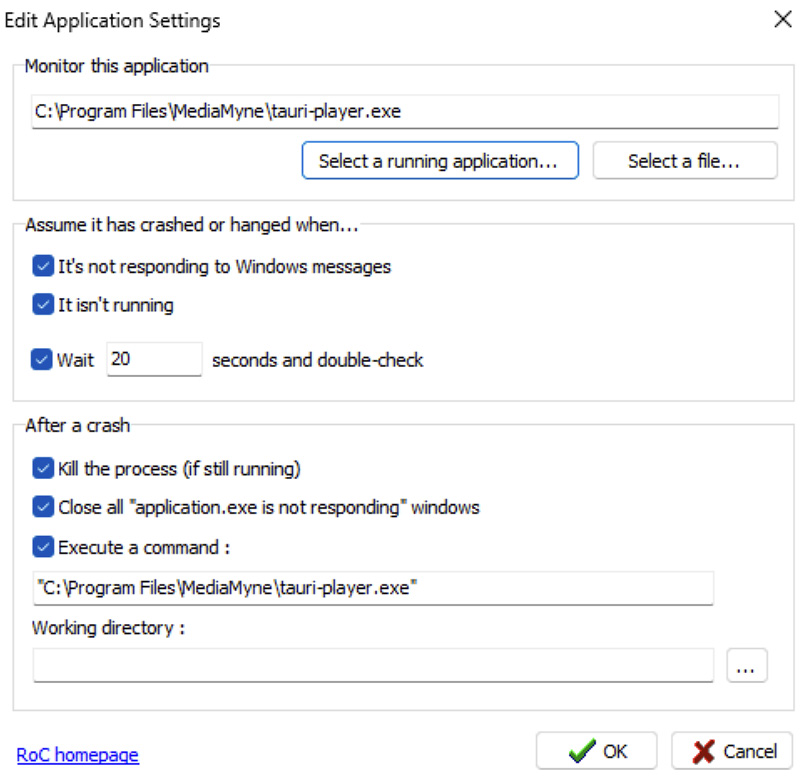
Example of the correct settings in RestartOnCrash.
Install the Android player
MediaMyne also has a player for Android devices, for example an Android TV or a media player. The installation is different from the Windows player:
- The watchdog app RestartOnCrash is not available. It is only for Windows.
- TeamViewer is optional. MediaMyne Support must help you to set it up.
Do the steps below in this order.
-
Install the player
Install the app MediaMyne TV in one of these 3 ways:
- Google Play
- On the Android device, open MediaMyne TV in Google Play and click Install.
- Philips ProStore
- For a Philips screen with Philips Wave. Open MediaMyne in the Philips ProStore and install the app on the screen.
- Installation file (APK)
- Use this if the device does not have Google Play. Download the MediaMyne TV installation file on the device and open it. If Android asks for permission to install apps from this source, allow it.
TipMake sure that the player starts automatically after a restart of the device. On professional Android screens, you usually do this in the settings of the device: select MediaMyne TV as the startup app.
-
Activate the player
After the installation, start the MediaMyne TV app. It shows an activation code.
- Write down the activation code.
- Send the code and a description of the location of the player to support@mediamyne.nl. The MediaMyne team activates the player.
NoteMediaMyne Support can set up your account so that you activate players yourself. If this is set up, refer to Activate a player.
-
Install TeamViewer Host (optional)
With TeamViewer Host, MediaMyne Support can control the Android device remotely.
- Install TeamViewer Host from Google Play.
- Contact MediaMyne Support. MediaMyne Support helps you to connect TeamViewer Host to MediaMyne.