
Mobile content management
All authorized usersUse this page to publish messages to the MediaMyne mobile app. From this page, you reach all connected app users on their phones. Open the page from the main menu.
The page has these parts:
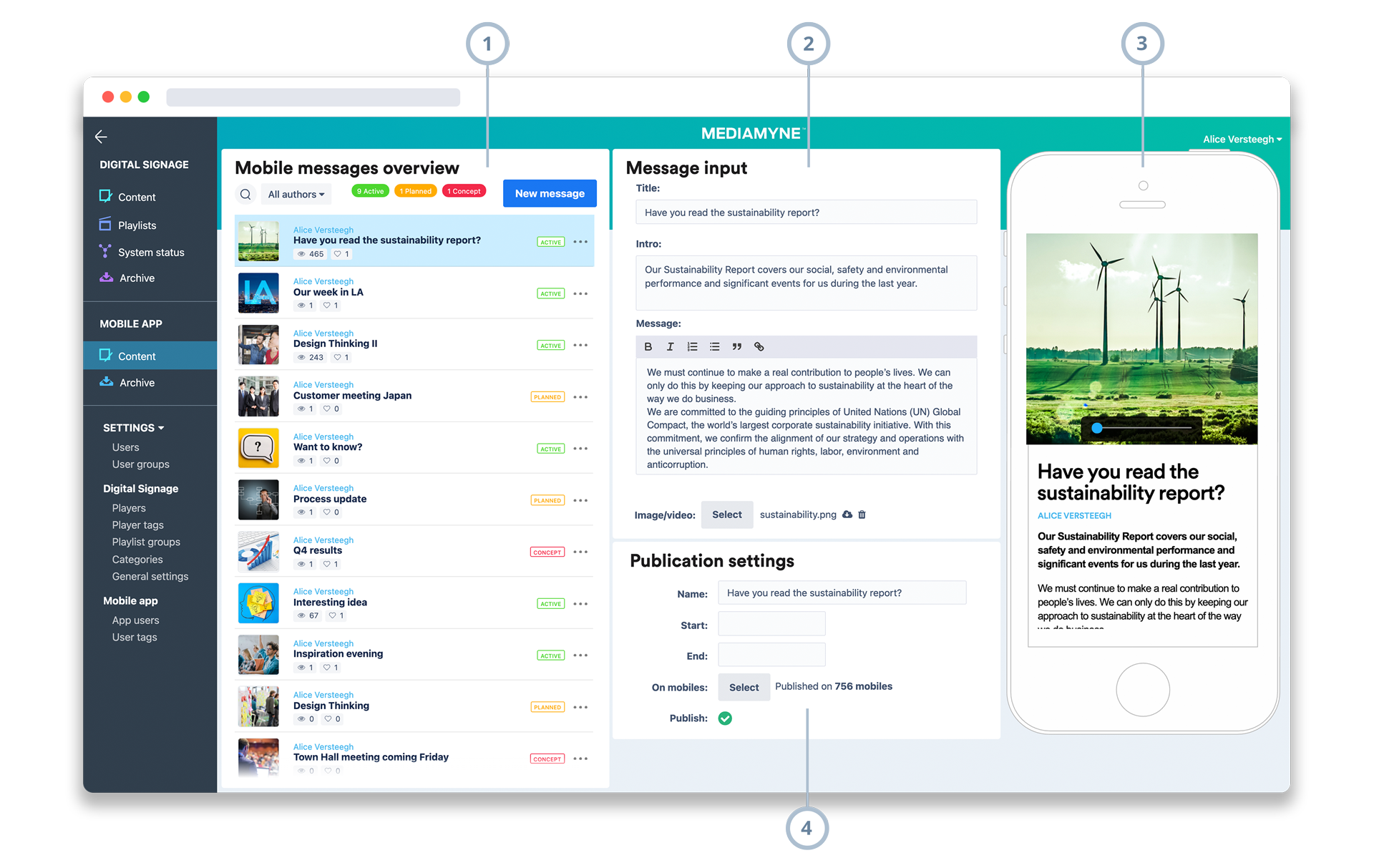
- Messages overview Shows all mobile messages of all users. You can search and filter the overview. Each message shows its status in color. Read more →
- Message input Contains all fields for text, images and video. A message has a title, an intro, a message text and an image or video. Read more →
- Message preview Shows the selected message exactly as it shows in the app. The preview changes immediately when you type. You can play video and scroll through the text. Read more →
- Publication settings Select the app users for the message and plan the message. Read more →
The messages overview
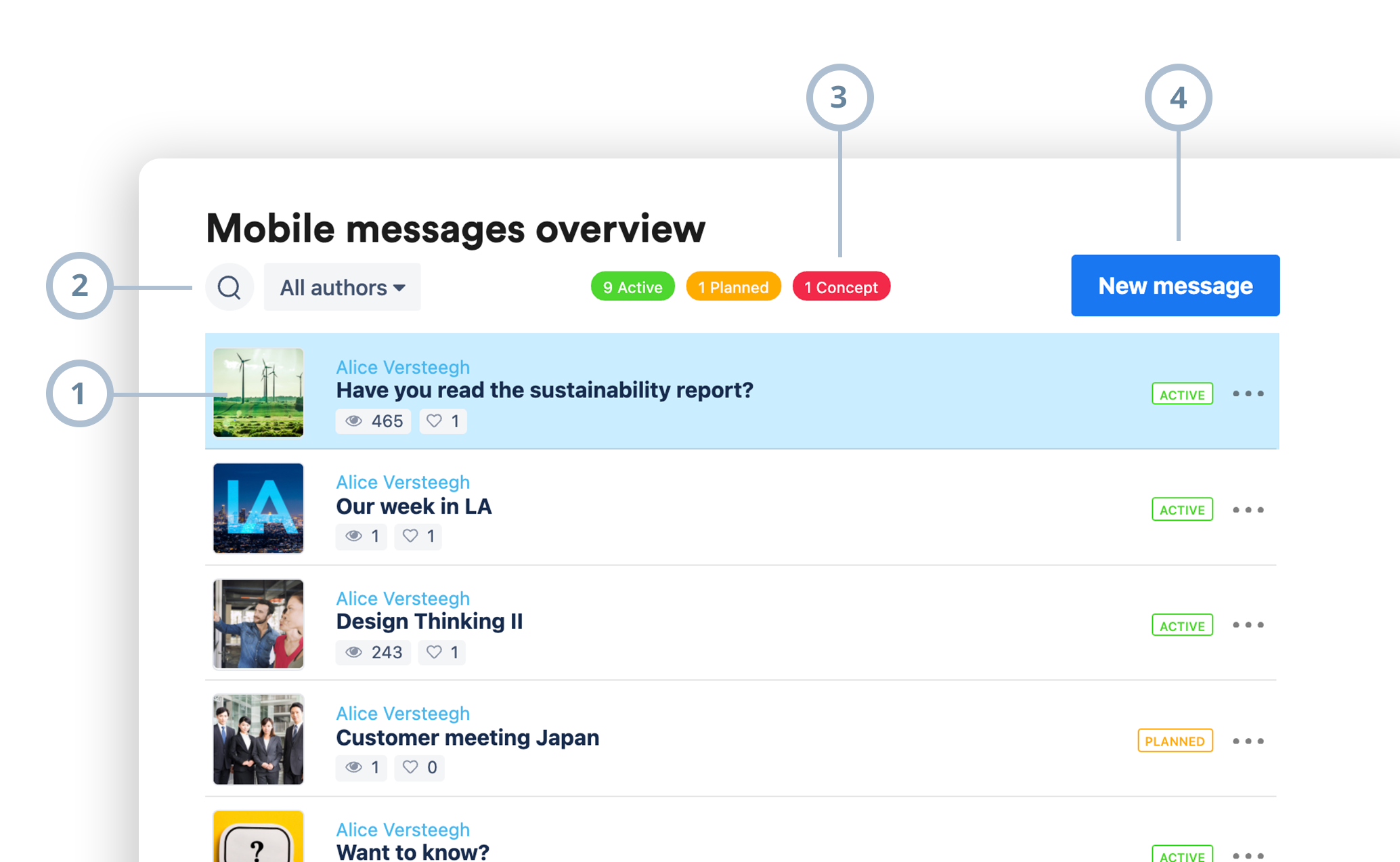
- Messages Each message shows an image, a name, a status, and the number of views and likes.
- Search and author filter Use the search field or the author filter to find messages quickly.
- Status filters Filter the overview by status. Each button shows the number of messages with that status.
- New message Click this button to make a new message.
Messages in the overview
Each message shows its image, or an image from its video. It also shows the name, the author, the number of views and likes, and the status.
- Number of views
- The number of people who opened the message on their phone. A person who opens the message a second time does not count again. Thus it is the number of unique readers. The number changes when the list of messages loads. The app also shows this number.
- Number of likes
- Users tap the ♡ icon to like a message. The overview shows the total number of likes for each message. The number changes when the list of messages loads.
Search and filter the overview
Search
Type in the search field. The overview changes immediately. The search looks only at the message name. It does not look at the text in the message. You can use the search together with the author filter and the status filters.
Author filter
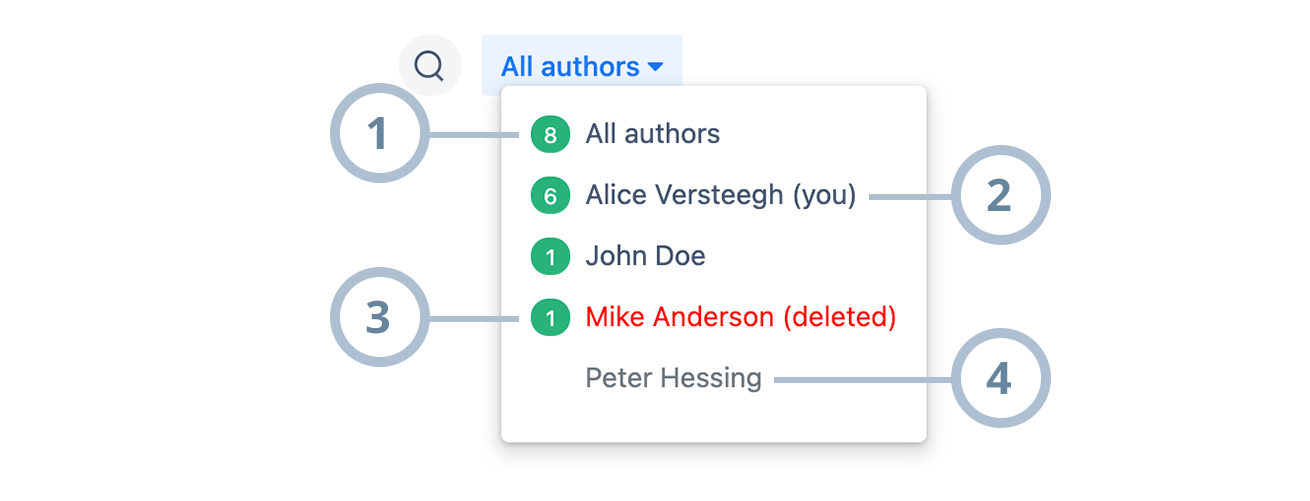
- All authors 1 is always at the top. This is the default setting.
- Below it, you see all authors with 1 or more messages. Your own name is at the top 2.
- Select an author to show only the messages of that author.
- A deleted user who made messages shows in red 3.
- Users without messages are at the bottom 4. You cannot select them.
Filter by status
Use the green, yellow and red buttons to filter the messages by status. For example, show only the active messages. Each button shows the number of messages with that status.

When you clear a status, the overview does not show messages with that status. You can use the status filters together with the other filter and the search.
| Status | Meaning |
|---|---|
| Active | The message is published to 1 or more app users. |
| Planned | The message is published to 1 or more app users. It becomes active automatically at a later time. |
| Concept | The message is not published. The Publish checkbox in the publication settings is off. |
| Processing | MediaMyne converts the video file of the message. |
Archive or delete a message
- Click the ⋯ (3 dots) button of the message.
- Select Archive or Delete.
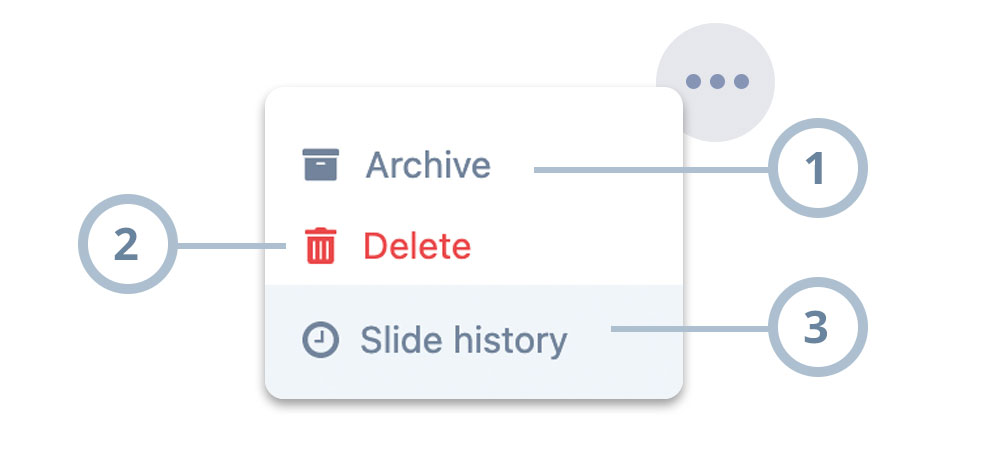
- Archive Moves the message to the archive. You can get the message back from the archive.
- Delete Deletes the message permanently. You cannot get it back.
- Message history Shows the date when the message was made and last changed, and by which user.
When you delete a message, you cannot get it back. If you do not need a message now, archive it. Then you can use the message again at a later time.
Message input
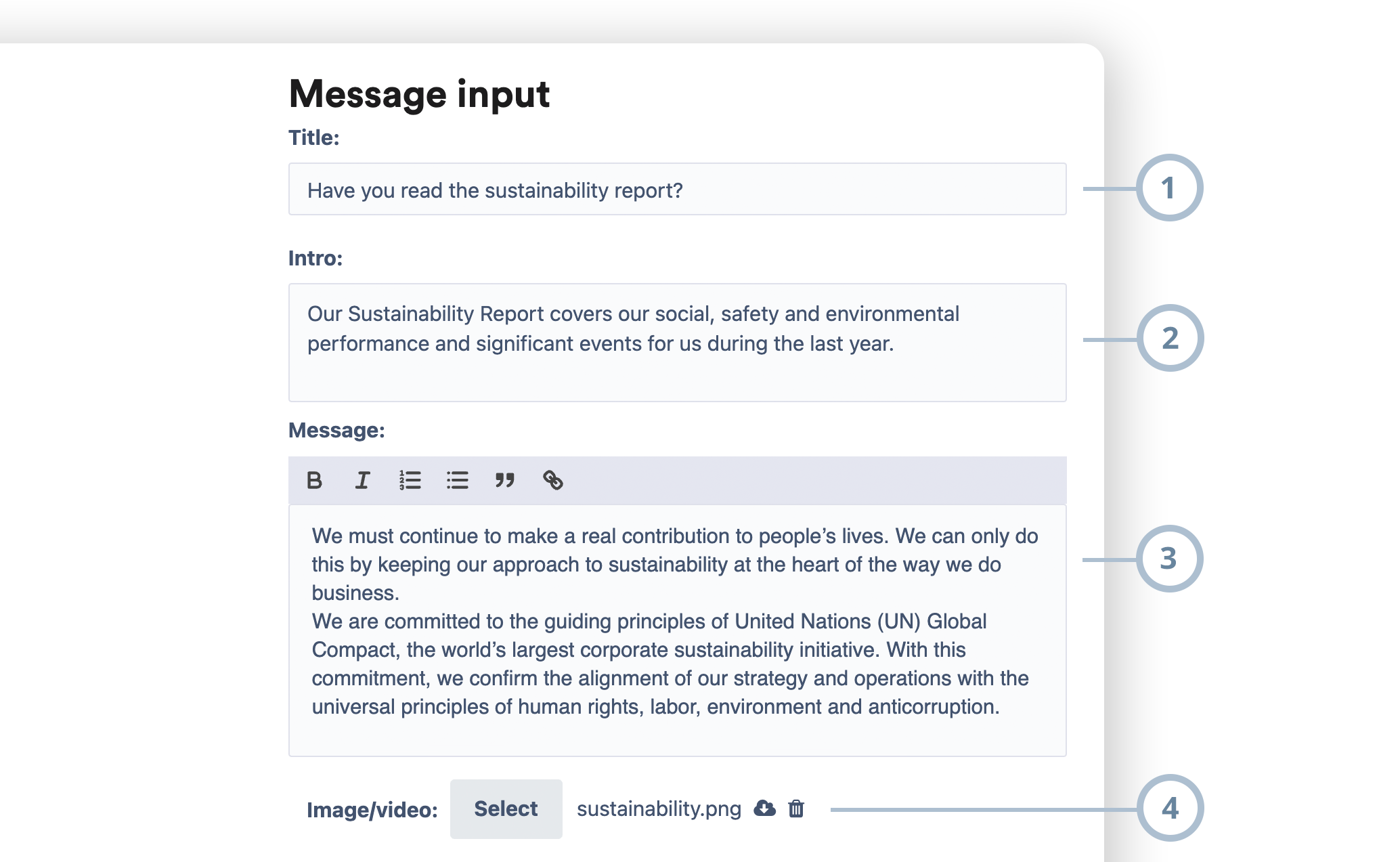
In this area, you add all content of the message. A message has 4 parts:
- Title The maximum length is 60 characters. Keep the title short.
- Intro A short summary of the message text. Try to use a maximum of 3 lines. The app shows the intro in bold.
- Message The message text has no maximum length. Use the toolbar above the field to make text bold, italic and more.
- Image or video Add 1 image or 1 video from your computer.
Format the text
Use the toolbar above the message field to format the text:
- Select the text.
- Click one or more buttons in the toolbar.
You can make text bold or italic. You can also show text as a quote, with large quote marks on the left. And you can make text into a link to an external website:
Add an image
- Click the image/video button.
- Select an image from the network or from your computer. Use a .jpg, .png or .gif file.
The image shows immediately in the message preview on the right. The image fills the image area. You can now save the message.
To change the position or the zoom of the image, edit it in the message preview:
- Move the slider above the image to change the size.
- Drag the image with the mouse to the correct position.
The app shows the result in the list of messages and in the opened message. When a user taps the image, the app shows the original image without your changes.
Add a video
You can add a video instead of an image.
- Click the image/video button.
- Select a video file from the network or from your computer.
- Save the message.
MediaMyne accepts all usual video formats, for example .mp4, .mov, .wmv, .avi, .flv, .f4v, .ogg and .m4v. Other formats are also possible.
After you save the message, MediaMyne converts the video automatically. The message is available when the conversion is complete. This takes 1 to 5 minutes. The time depends on the file size and the length of the video. During the conversion, the message has the status Processing.

You can log out during the conversion. This does not stop the process. MediaMyne then sends the message to the selected users automatically.
Message preview
The preview shows the selected message as it shows in the app. Text and images show immediately when you add them.
When the message has an image, a slider shows. Use it to zoom the image. You can also move the image in the preview. The app shows the image as you saved it in the square area. When a user opens the image, the app shows the original image.
Publication settings
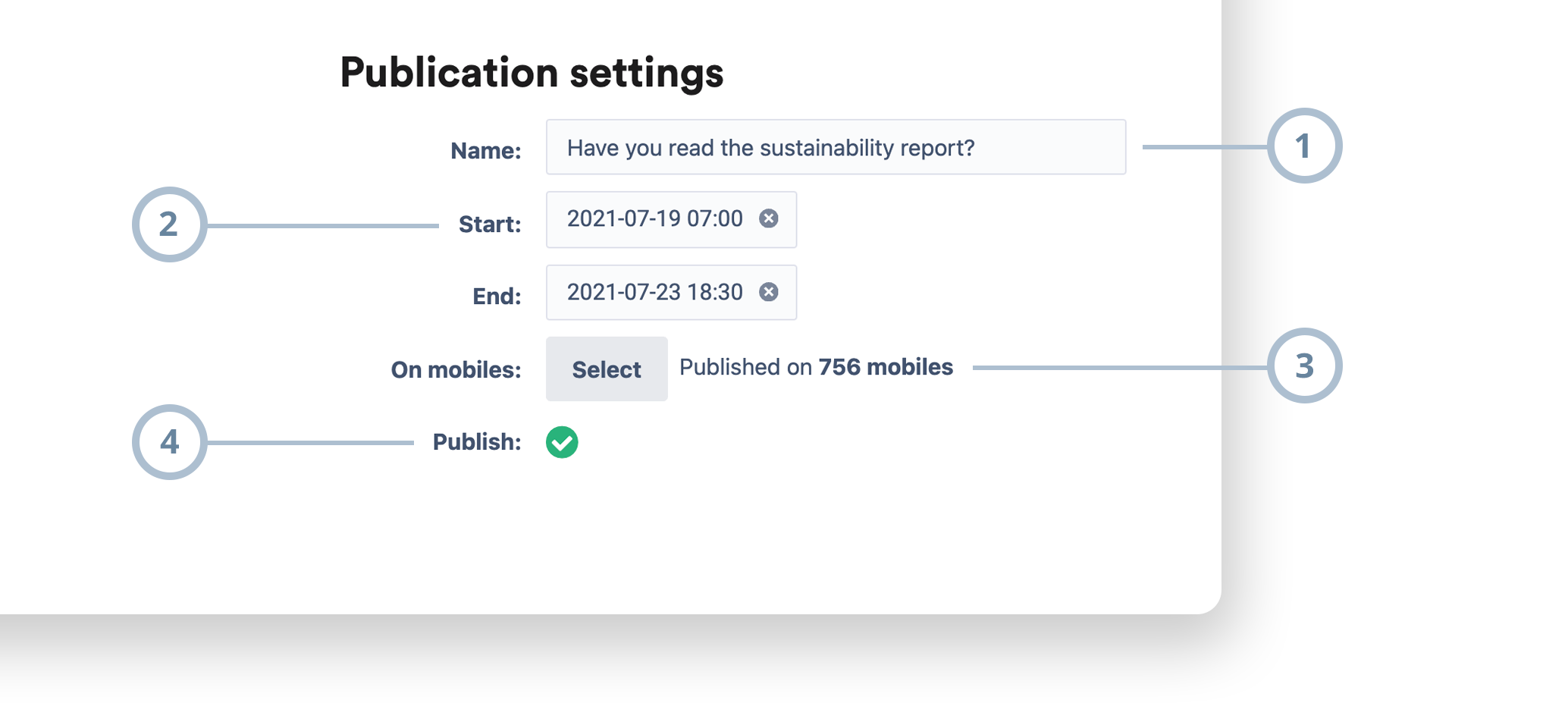
Use the second tab, Publication settings, to select the app users for the message. You can also set a period.
- Name The name shows only in the overview and in the search. It never shows in the app. MediaMyne copies the title into this field. You can change the name at any time.
- Start date and end date Use them to plan the message or to stop it automatically. By default, the dates are empty. The message then starts immediately and does not stop.
- On mobiles Opens the dialog where you select app users. The button shows the number of selected users.
- Publish If you clear this checkbox, MediaMyne saves the message as a concept. You can publish it at a later time.
Name
The name helps you to find the message in the CMS. The name never shows in the message. The name shows in the messages overview, and the search uses it. MediaMyne makes the name from the title. You can change the name and keep the title.
Start date and end date
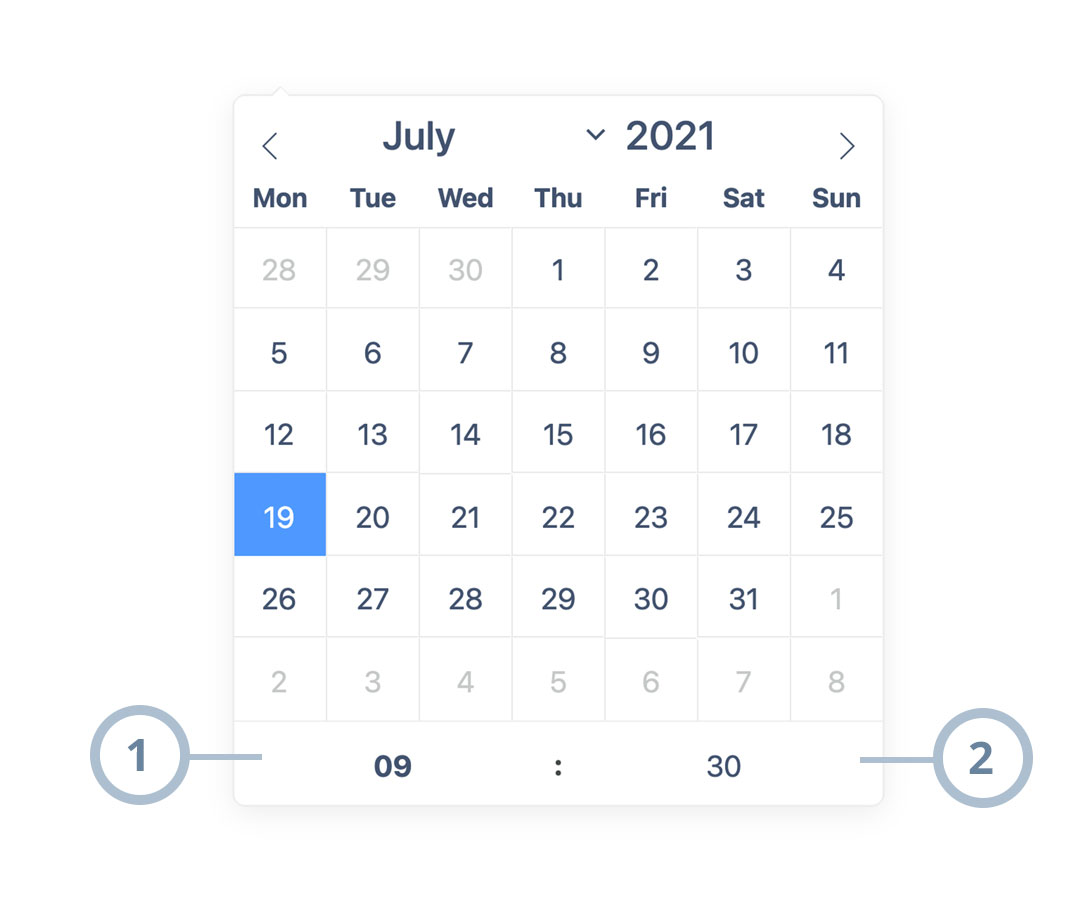
Set a start date and an end date to control when the selected users can see the message.
| Start date | End date | Result |
|---|---|---|
| Empty | Empty | The message starts immediately and does not stop. |
| Empty | Set | The message starts immediately and stops at the end date and time. |
| Set | Set | The message shows only between the 2 dates and times. |
Select app users
Click On mobiles to open the app user selection dialog. In this dialog, you select the app users for the message.
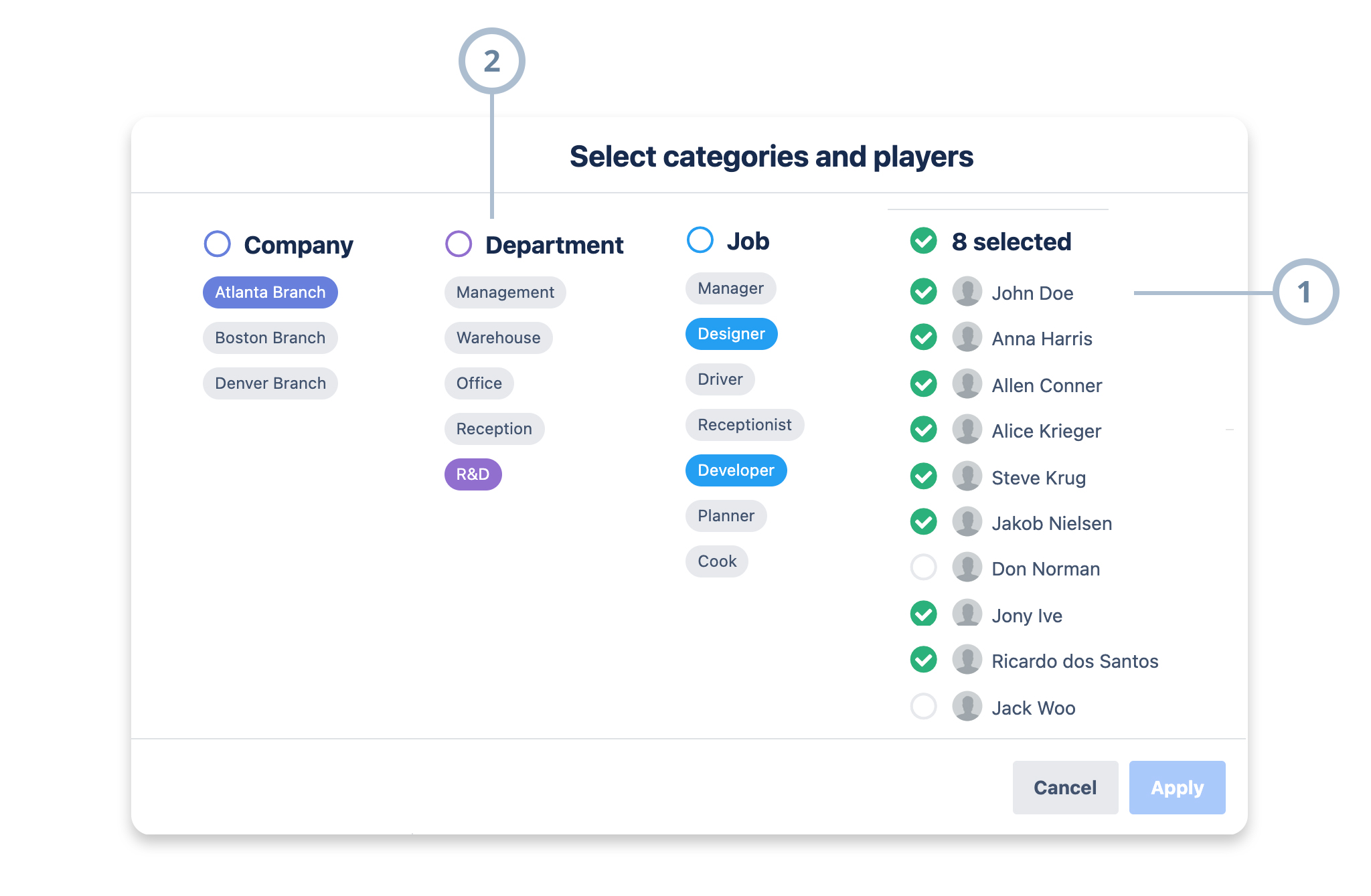
- App users All users are on the right side of the dialog. By default, all users are selected.
- User tags Each user has a job, a department and a company. Clear tags to filter the list of users 1. For example, select only the tag “Atlanta Branch” to show only the users of the company in Atlanta.
All tag filters apply together. For example, select the tags “Atlanta Branch” and “Management”. The list then shows only the managers of the Atlanta Branch. Then select or clear the users in the list on the right.
Publish
Select Publish to publish the message. If you clear Publish, MediaMyne saves the message as a concept. You can publish it at a later time.
Archive
All authorized usersThe archive contains:
- Messages that a user moved to the archive.
- Messages that expired. A message expires when its end date is in the past. MediaMyne then moves it to the archive automatically.
You can keep a message in the archive, delete it permanently or move it back to the messages overview.
- Select the messages in the archive overview.
- At the bottom of the page, click Retrieve or Delete.
A retrieved message goes back to the messages overview as a Concept. MediaMyne restores all original settings, but not the publication dates. You can then publish the message again.
Each night, MediaMyne automatically deletes archived messages that are older than 2 years.
Your publications
The users must receive an invitation and activate the app before they can receive messages. Refer to Invite app users. The invitation email tells the app users what to do.
Push notifications
- When you publish a message, all selected app users get a push notification immediately. You cannot turn this off.
- A planned message sends the push notification at its start date and time.
- If you add app users to a published message, the new users also get a push notification.
- A message with a video does not send a push notification.
Each user controls notifications in the settings of their phone. If notifications are off, the user does not get them. For more information, refer to the Apple support page for iPhone, or the Android support page.