
Content management
Directors and EditorsThe content management page is the most important page for digital signage. On this page, you make and publish slides. MediaMyne opens this page automatically after you log in.
The page has these parts:
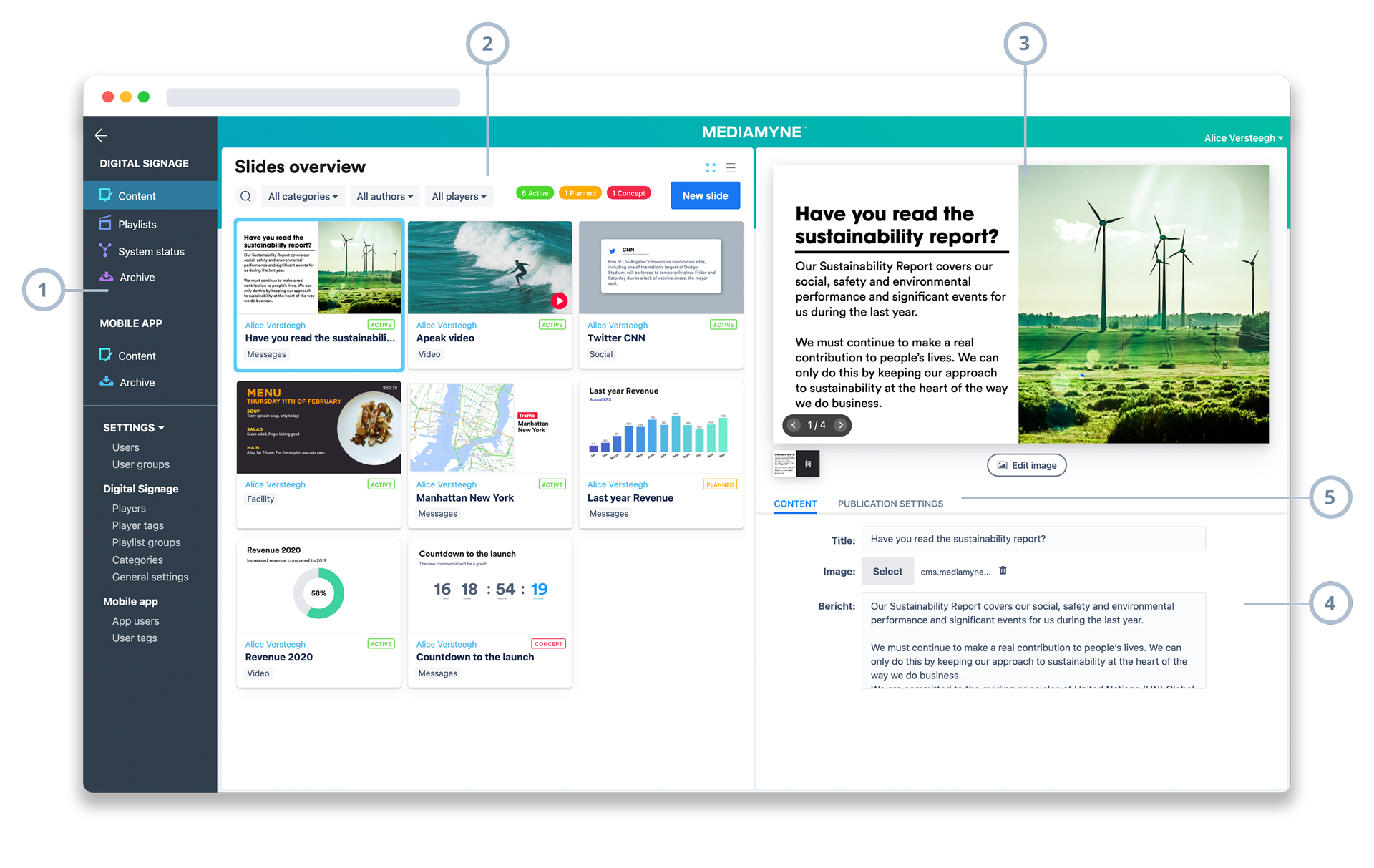
- Main menu Click ☰ at the top left to open the main menu. Use it to go to all parts of MediaMyne. The menu has 3 blocks: Digital signage, Mobile app and Settings. Your authorization controls which items you can see.
- Slides overview Shows the slides that you made. If your authorization allows it, it also shows the slides of other users. You can search and filter the overview. Each slide shows its status in color. Read more →
- Slide preview Shows the selected slide exactly as it shows on the screen. The preview changes immediately when you type. You can play video and template animations. Read more →
- Slide content Below the preview, use the Content tab to add or change the text, image or video of the slide. The template controls which fields are available. Read more →
- Publication settings Use the Publication settings tab to select the players, plan the slide, set the duration and select the category. Read more →
Some screenshots on this page show an older version of the CMS. For example, the main menu now opens with the ☰ button. The functions are the same.
The top bar
The top bar is on all pages. On the right side, it has these items:
- Notifications (bell)
- Shows your notifications. For example, MediaMyne tells you when there are messages that are not published. Refer to Notifications.
- Help (?)
- Opens this help site.
- Your name
- Opens a menu with Account settings and Log out. Refer to Your account.
The slides overview
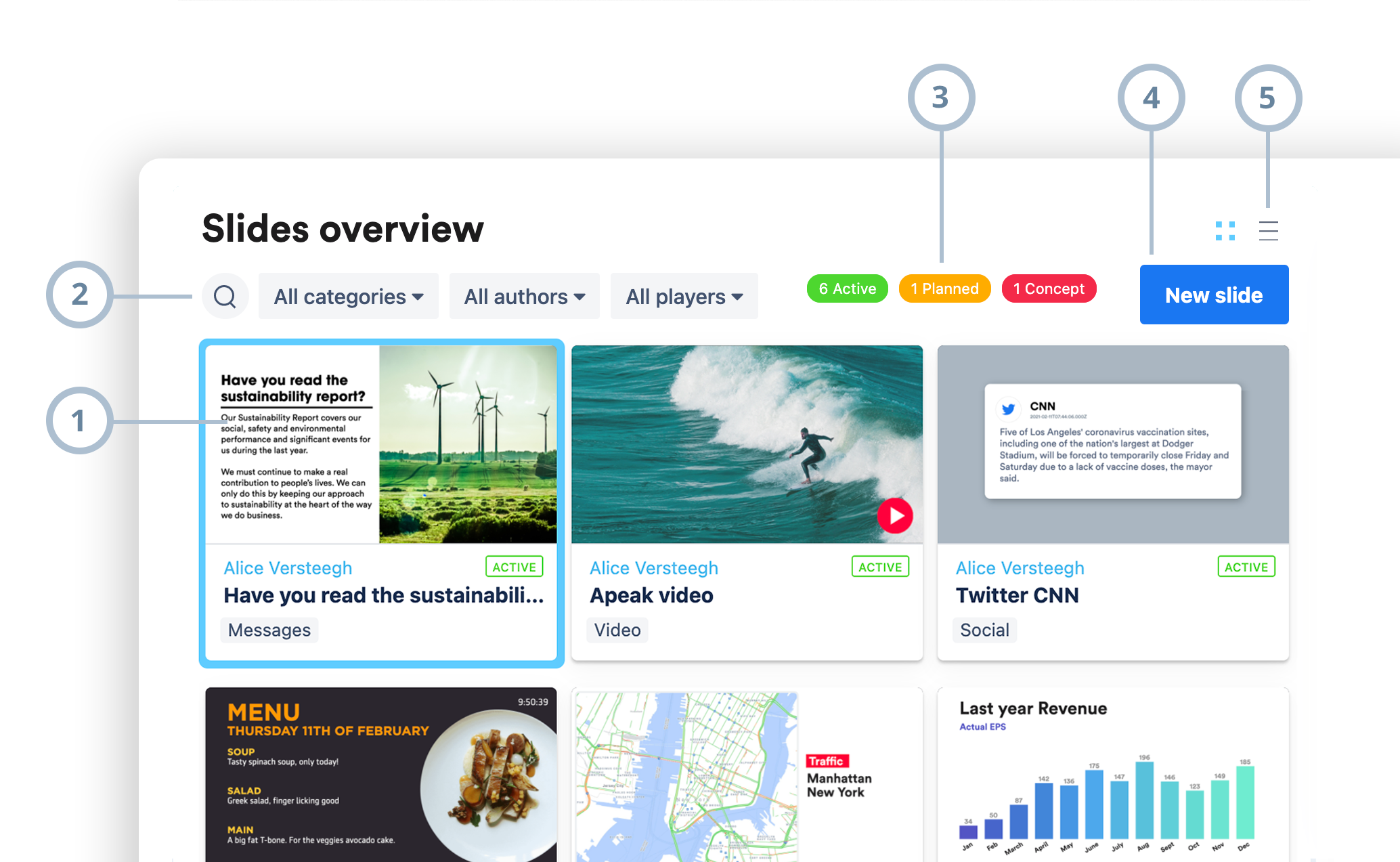
- Slides Each slide shows an image of the slide, a name and more data.
- Search and filters Use the search field or the filters to find slides quickly.
- Status filters Filter the overview by status. Each button shows the number of slides with that status.
- New slide Click this button to make a new slide.
- View mode Change the overview from a list to large previews.
Slides in the overview
Each slide in the overview shows an example of the slide, its name, its author, its category and its status. In the image below, the view mode shows large examples.
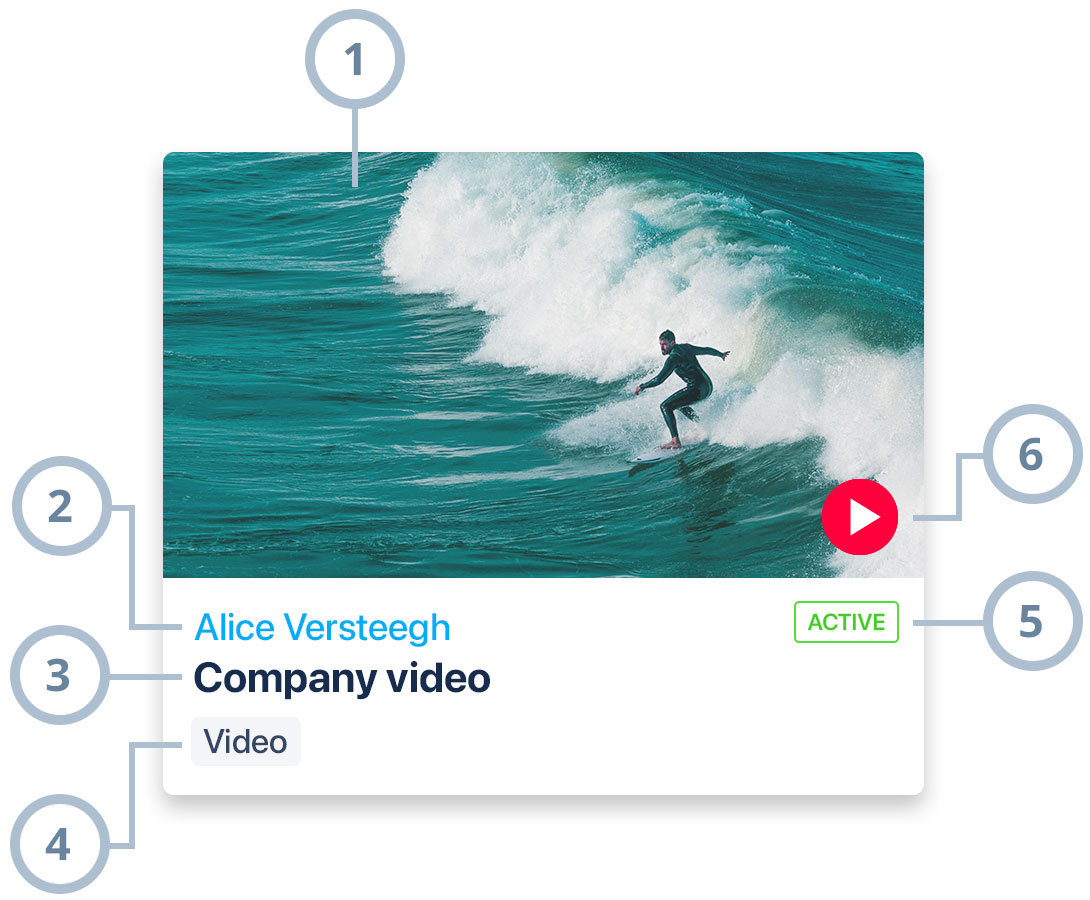
- Image of the slide An exact example of the slide. For a video, this is an image from the video.
- Author The full name of the user who made the slide.
- Name The name that you gave the slide when you saved it.
- Category The playlist category that contains the slide.
- Status The slide is active, planned or in concept.
- Video icon Shows that the slide contains a video.
Search and filter the overview
Search
Type in the search field. The overview changes immediately. The search looks only at the slide name 3. It does not look at the text in the slide. You can use the search together with the filters.
Filters
You can filter the overview by category, author or player. You can use these filters together. By default, all filters are off and the overview shows all slides.
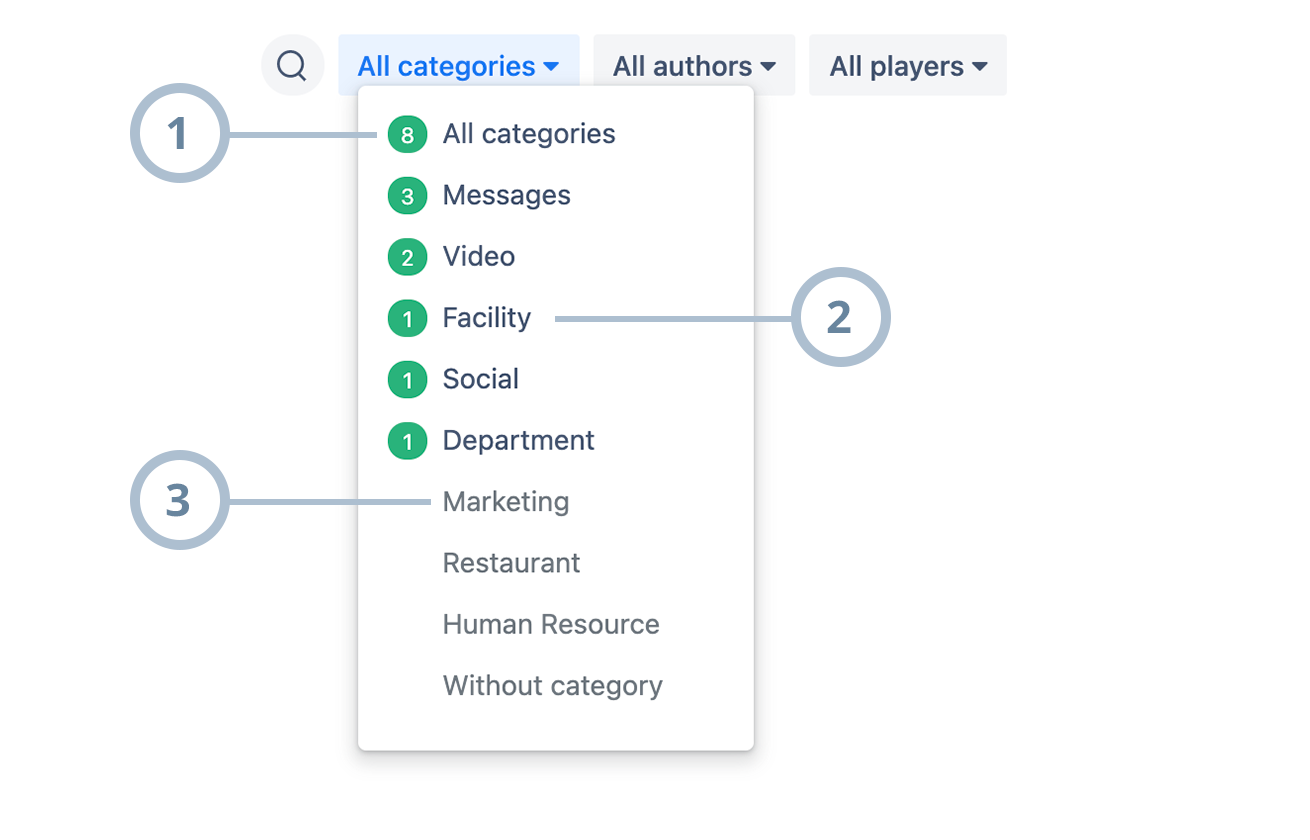
- Category filter
-
All categories 1 is always at the top. This is the default setting.
Below it, you see all categories that contain 1 or more slides 2. Each category shows its number of slides. Select a category to show only its slides.
Categories without slides are at the bottom 3. You cannot select them.
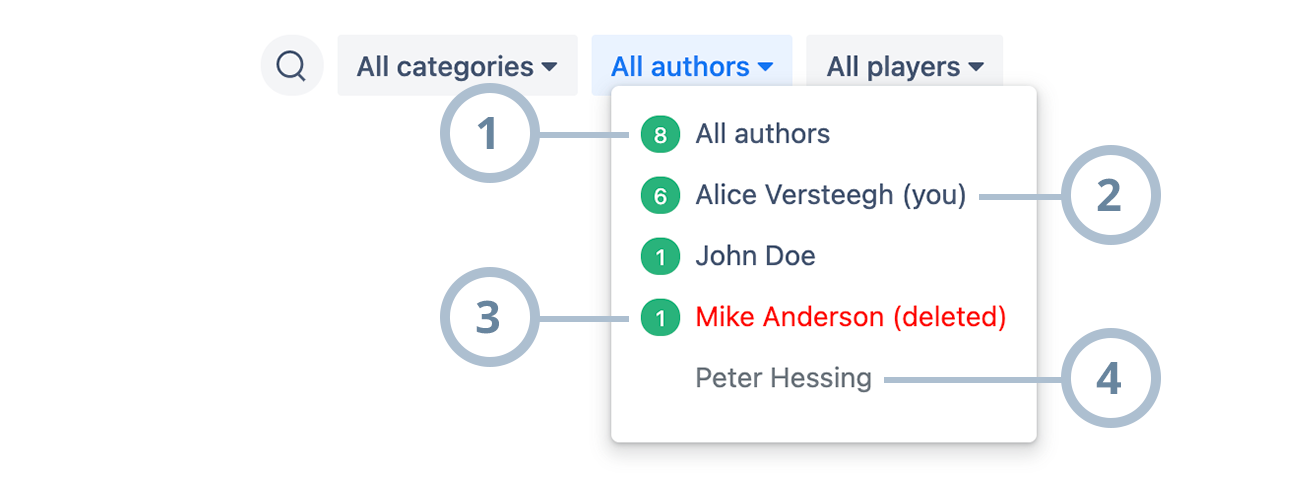
- Author filter
-
All authors 1 is always at the top. This is the default setting.
Below it, you see all authors with 1 or more slides. Your own name is at the top 2. Select an author to show only the slides of that author.
A deleted user who made slides shows in red 3. A deleted user without slides is at the bottom 4. You cannot select this user.
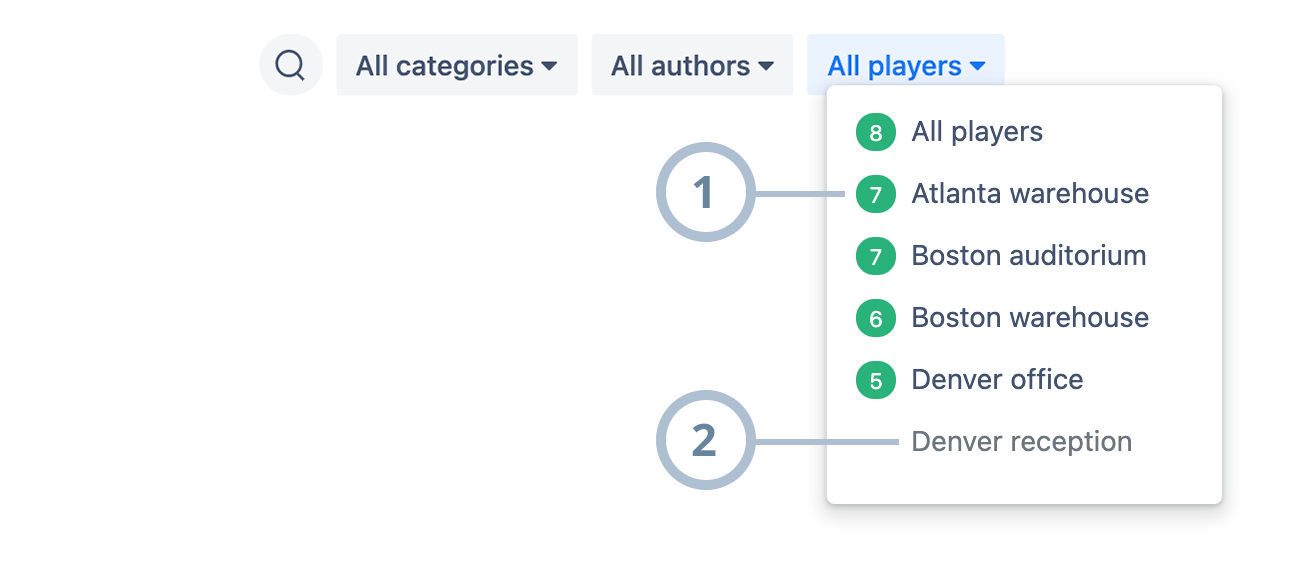
- Player filter
-
Use this filter to see the slides that are published on a player. This tells you what the player must show. The filter also shows the number of slides for each player 1. Thus you can quickly find a player without content.
Players without slides are at the bottom 2. You cannot select them.
Filter by status
Use the green, yellow and red buttons to filter the slides by status. For example, show only the active slides. Each button shows the number of slides with that status.

When you clear a status, the overview does not show slides with that status. You can use the status filters together with the other filters and the search.
| Status | Meaning |
|---|---|
| Active | The slide is published. It shows now on 1 or more screens. |
| Planned | The slide is published on 1 or more screens. It becomes active automatically at a later time. |
| Concept | The slide is not published. The Publish checkbox in the publication settings is off. |
| ⚠ Active | The slide can be active, but its category is not in an active playlist. Add the category to a playlist on the playlist page. |
| Processing | MediaMyne converts the video file of the slide. |
View mode
The overview has 2 view modes. The default view is a list with 1 slide on each line. Click one of the 2 buttons at the top right to show large examples. MediaMyne keeps your last selection. The view mode does not change how the system operates.
Slides from other users
Your settings control if you can see or edit the slides of other users. A Director can see and edit all slides of all users. An Editor in a user group can see and edit the slides of the group.
You can change the players, the category and the template of the slide of a different user. But you can do this only within the authorization of the user who made the slide.
Copy, archive or delete a slide
To copy, archive or delete 1 slide:
- Move the pointer over the slide.
- Click the ⋯ (3 dots) button.
- Select Copy, Copy to mobile, Archive or Delete.
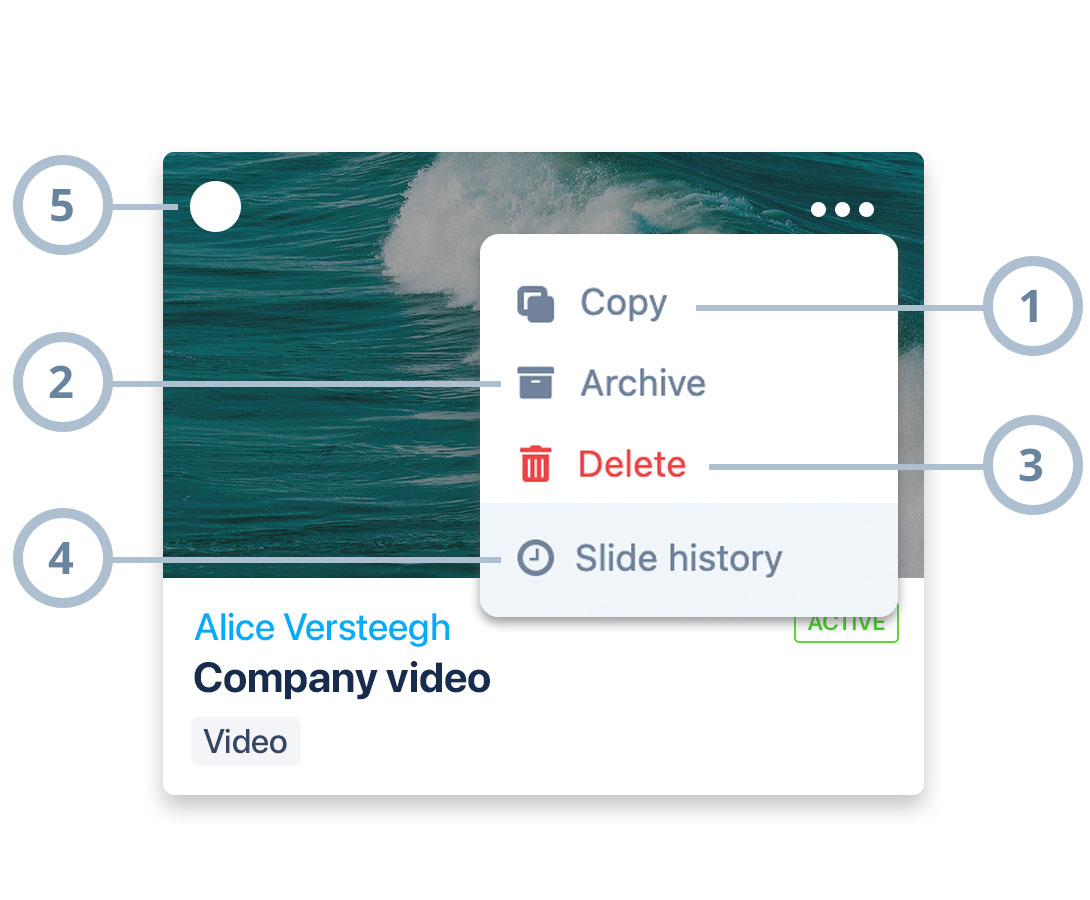
- Copy Makes a copy of the slide.
- Archive Moves the slide to the archive. You can get the slide back from the archive.
- Delete Deletes the slide permanently. You cannot get it back.
- Slide history Shows the date when the slide was made and last changed, and by which user.
- Multi-select Shows when you move the pointer over a slide. Select it to select more slides at the same time.
The menu also has Copy to mobile. This makes a message for the mobile app from the slide. You must have a MediaMyne Mobile license.
Copy a slide
You can copy each slide in the overview. This includes the slides of other users. After you copy a slide, you can change all content, the template and the publication settings.
The copy gets only the content of the slide: the text, images and video. The publication settings of the copy are the default settings of a new slide. Your own authorization for players and categories applies.
If you cannot use the template of the original slide, MediaMyne asks you to select a different template. You must do this before you can publish the copy. After you copy a slide, there is no relation between the original and the copy.
Archive or delete more slides at the same time
- Move the pointer over a slide.
- Select the checkbox at the top left of the slide. This starts the multi-select.
- Select the other slides.
- In the bar at the bottom of the page, click Archive or Delete.
When you delete a slide, you cannot get it back. If you do not need a slide now, archive it. Then you can use the slide again at a later time.
Slide preview
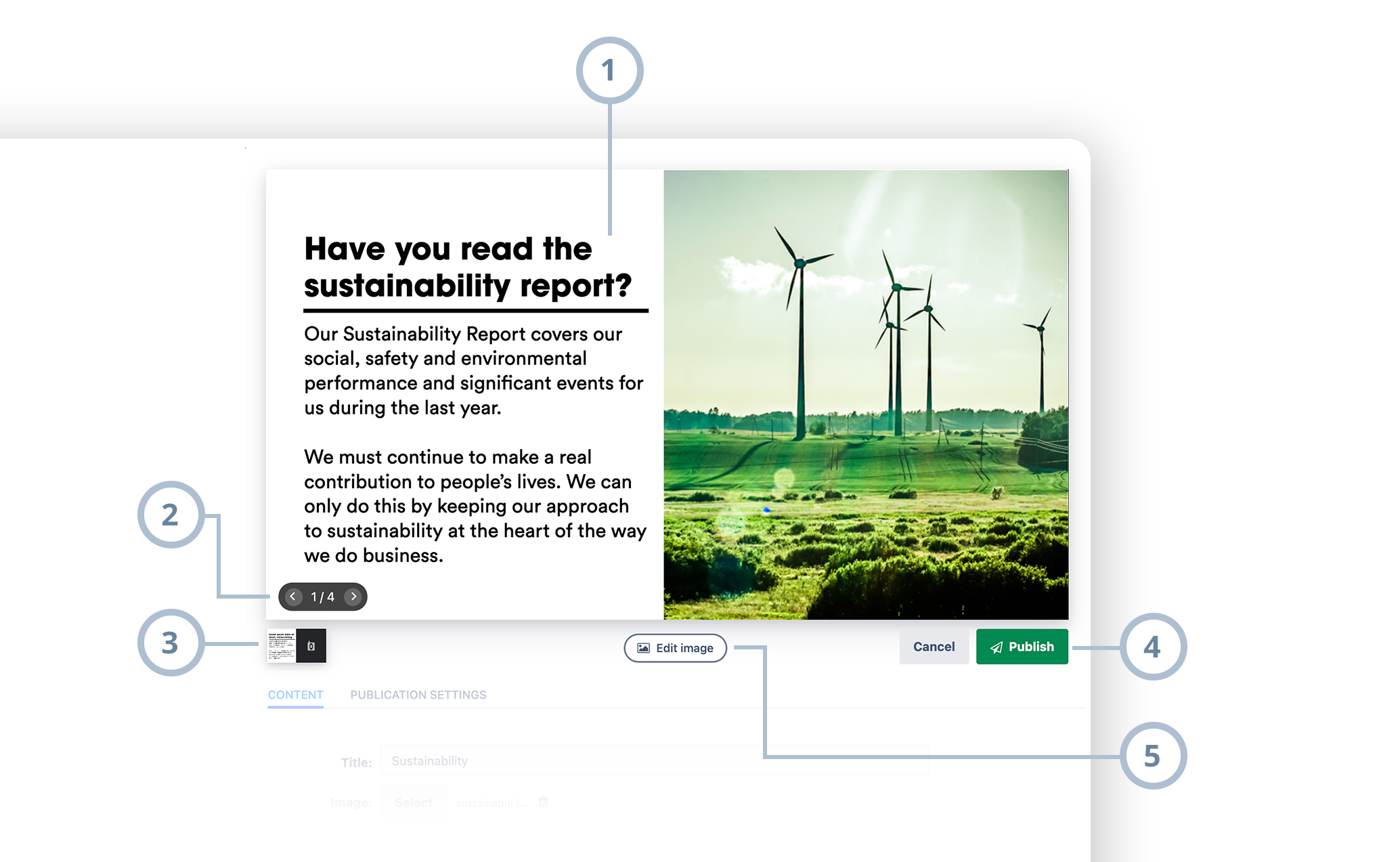
The preview shows the selected slide as it shows on the screens. It shows the template with your text, images or video. The preview changes immediately when you type. For some templates, click the preview to play the animations.
- Slide preview An exact example of the slide on the screen.
- Text navigation Go through all pages of the text.
- Template change This small image shows the selected template. Click it to change the template.
- Publish Shows when you make a new slide or change a slide. Click it to publish the slide on the selected screens. A concept slide is only saved.
- Edit image Shows only when the slide has an image. Click it to zoom or move the image.
Text navigation
If a slide has more text than one page can show, buttons show at the bottom left. Use these buttons to go through the full text.
On the screen, the player goes through the pages automatically. Each page shows for the duration of the slide.
The duration of the slide is 10 seconds and the text has 3 pages. The slide then shows for 30 seconds in total.
Change the template
When you make a new slide, you first select a template. You can change the template at any time:
- Click the small template image 3. A dialog opens.
- Double-click the new template. MediaMyne applies it to the slide immediately.
MediaMyne moves as much content as possible to the new template. This depends on the fields in the new template. MediaMyne moves text to a field with the same label. For example, the text in the field Text goes to the field Text in the new template.
If you change a slide with an image to a video template, the image does not move to the new template.
Content entry
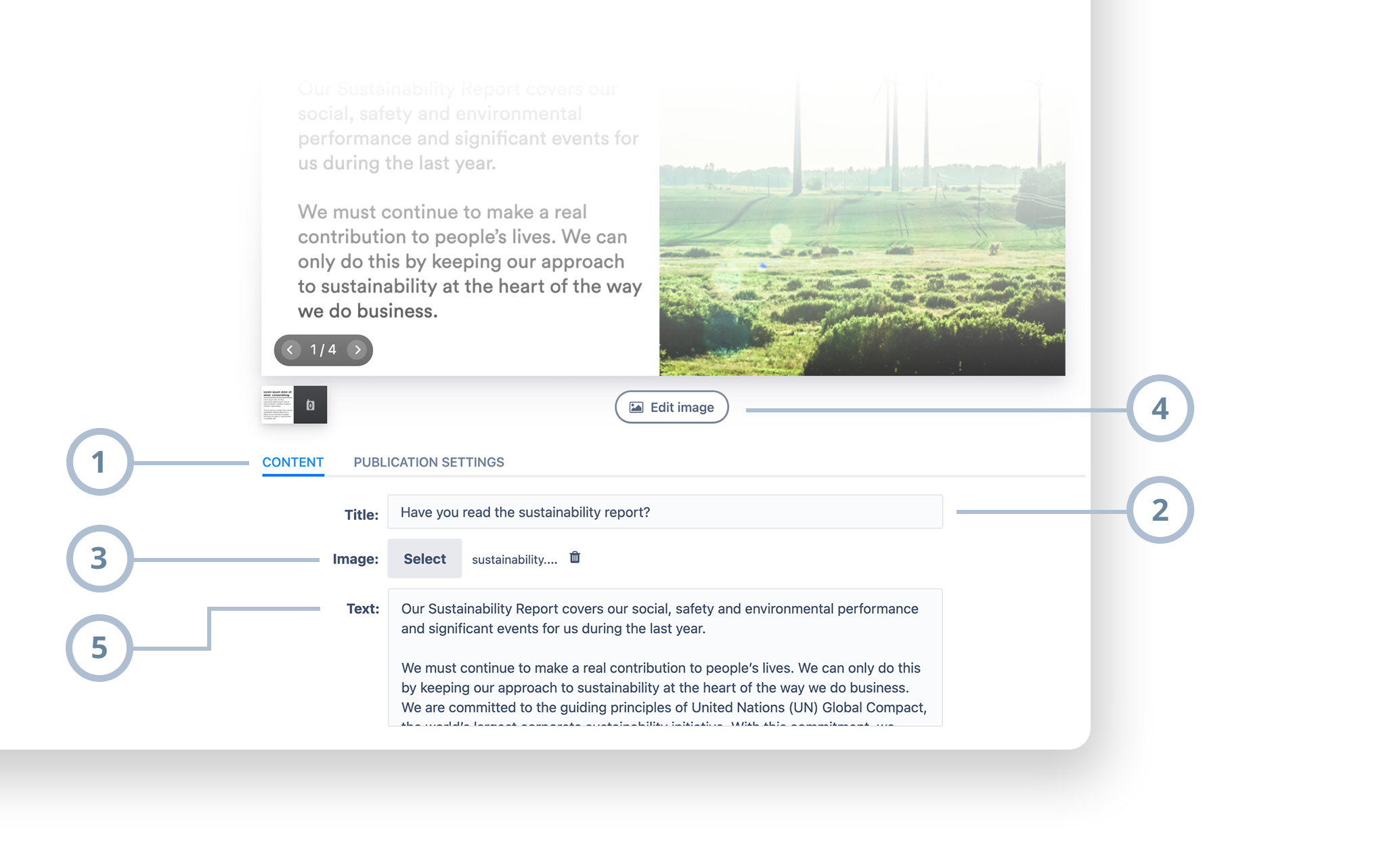
In this area, you add the content of the slide. The template controls which fields show. Many templates have an image. Some templates have a video, and some have only text or data.
If the template has an image, an image button 3 shows below the title field. If the template has a video, the button shows Video. Many templates have the field Text. Some templates also have color fields, sliders for position or date pickers for a countdown.
- Content tab This tab is selected by default. It shows all content fields. The publication settings tab is next to it.
- Title All slides have a title field. Some templates do not show the title on the slide. The maximum length of a title is 60 characters.
- Image or video Shows if the template can have an image or video. Refer to Add images and Add video.
- Edit image Shows when the slide has an image. Click it to start the image editor.
- Text The template controls the type and number of text fields. Each field has a maximum number of characters. You cannot make text bold or italic.
Publication settings
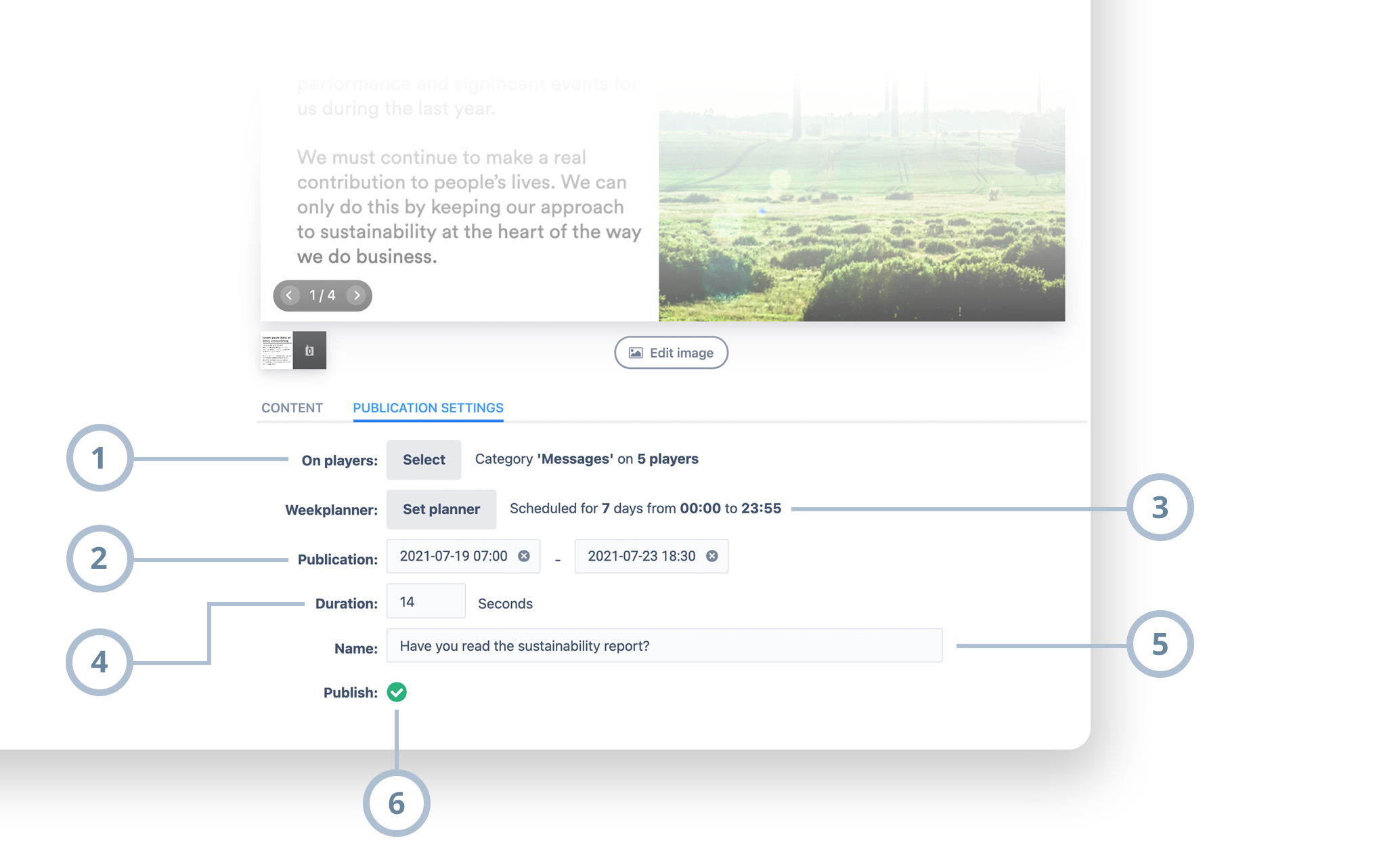
Use the second tab, Publication settings, to select the screens for the slide. You can also set a period and select a playlist category. The tab has these fields, from top to bottom:
- On players
- Click Select to open the dialog where you select players and a category. Next to the button, MediaMyne shows the number of players and the selected category. If the slide cannot show on some selected players, MediaMyne shows the number of conflicts in red, for example “10 conflicts”. Read more →
- Weekplanner
- Click Set planner to show the slide each week on the days and hours that you select. Next to the button, MediaMyne shows the current setting, for example “7 days from 00:00 to 23:55 hour”. Read more →
- Publication
- A start date and an end date. Use them to plan the slide or to stop it automatically. By default, the dates are empty. The slide then starts immediately and does not stop. Read more →
- Duration
- The time in seconds that the slide shows on the screen. An administrator sets the default in General settings. Read more →
- Name
- The name shows only in the overview and in the search. It never shows on the screen. Read more →
- Pin message
- Select this option to pin the slide on the selected players. Only available if MediaMyne Support turned it on. Works only on the most recent Windows player. Read more →
- Publish
- If you clear this checkbox, MediaMyne saves the slide as a concept. You can publish it at a later time.
Select players and a category
Next to On players, click Select. The dialog Select categories and players opens. In this dialog, you select the players for the slide. You also select the playlist category for the slide. Click Apply to keep the selection.
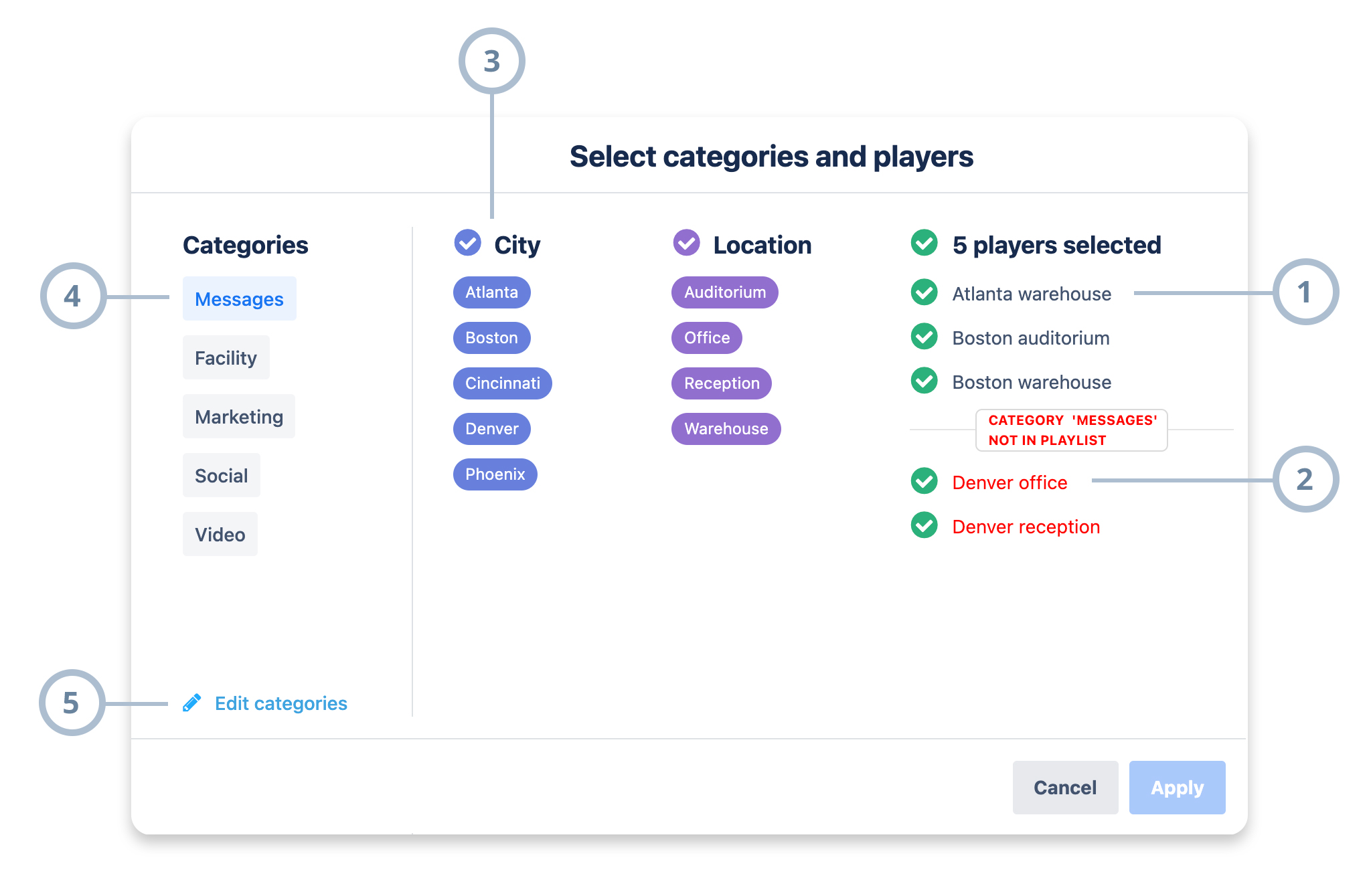
- Player selection All players are on the right side of the dialog. By default, all players are selected.
- Players without the selected category You can select players in red, but the slide does not show on them. The selected category 4 is not in the playlist of these players. To correct this, add the category to their playlist.
- Player tags Each player has its own set of tags. Clear tags to filter the list of players 1 and 2. For example, select only the tag “Boston” to show only the players in Boston.
- Categories You must save each slide in a category. The category must be in the playlist of the player.
- Edit categories Rename, delete or add categories. When you add a category, put it in the correct playlist. If you do not do this, the slides in the category do not show on the screens.
All tag filters apply together. For example, select the tags “Atlanta” and “Warehouse”. The list then shows only the players in the warehouses in Atlanta. Then select or clear the players in the list on the right.
The categories are on the left of the dialog. A category is part of a playlist, and the screen shows the playlist. If your authorization allows it, you can make categories and add them to the playlist. Usually, a small number of categories is sufficient. Editors have limited rights. For Editors, the administrator manages the categories in the settings. For a new slide, MediaMyne selects the first category in the list.
Director and Editor categories
Below Categories, the dialog has 2 tabs: Director and Editor. Below the categories, use Group to select the user group.
- As a Director
- You can put a slide in a Director category or in an Editor category. For an Editor category, also select the group of Editors in Group. The slide is then ready for the Editors of that group.
- As an Editor
- Select an Editor category. Then select in Group the group of Editors for which you publish the slide.
Refer to user groups and Editor categories in the settings.
If the selected category is not in the playlist of some selected players, the dialog shows a red message. These players do not show the slide.
Publication period
Set a start date and an end date to control when the slide shows on the selected screens.
| Start date | End date | Result |
|---|---|---|
| Empty | Empty | The slide starts immediately and does not stop. |
| Empty | Set | The slide starts immediately and stops at the end date and time. |
| Set | Set | The slide shows only between the 2 dates and times. |
Weekplanner
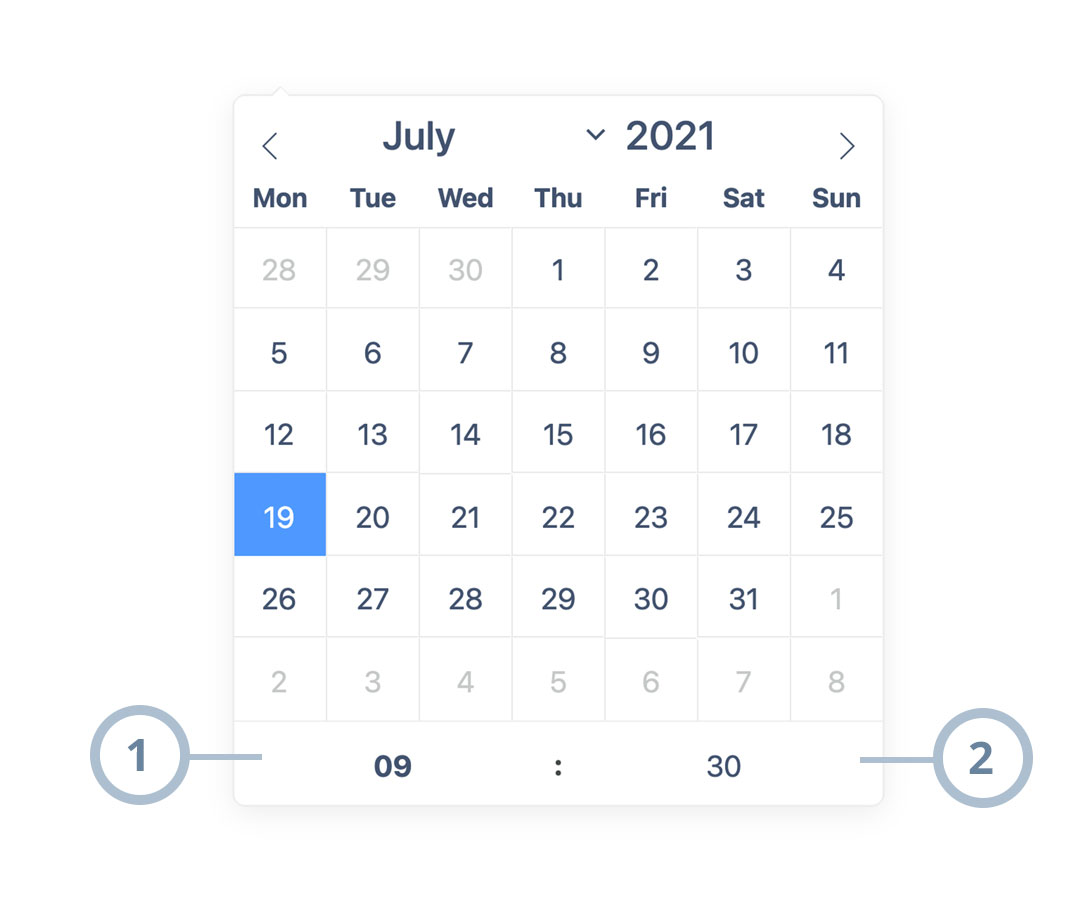
Click Set planner to open the Weekplanner. Use it to show the slide each week on specified days and hours. For example, show the slide only on Monday and Tuesday from 09:00 to 11:00.
You can use the Weekplanner together with the start date and end date. The weekly times then apply only in the publication period.
Duration
The duration is the number of seconds that the slide shows. An administrator sets the default duration for new slides in General settings. You can change the duration for each slide.
For a video template, you cannot set the duration. The length of the video sets the duration. The duration applies to each page of text. For example, a slide of 10 seconds with 3 pages of text shows for 30 seconds.
Name
The name helps you to find the slide in the CMS. The name never shows on the slide. The name shows in the slides overview, and the search uses it. MediaMyne makes the name from the title. You can change the name and keep the title.
Pin message
Select Pin message to pin the slide on the selected players. A pinned slide stays on these screens.
- You can pin more than 1 slide on the same player or players.
- To stop the pin, clear Pin message. Then make sure that the slide is in a category of the playlist: click Select next to On players. Then save the slide.
Pin message is off by default. It works only on the most recent Windows player. If you want to use it, contact MediaMyne Support. If Pin message is not in your publication settings, the function is off for your account.
Publish
Select Publish to publish the slide. This does not automatically put the slide in an active playlist. If you clear Publish, MediaMyne saves the slide as a concept.
Save and publish
You can save a slide or publish it immediately. The green button below the slide example changes:
- If Publish is selected, the button publishes the slide.
- If Publish is clear, the button saves the slide as a concept.
You can always edit a slide and publish it at a later time.
Make a new slide
After you log in, the overview shows all slides that you made. If there are no slides, a large blue button shows. Use it to make your first slide.
- Click New slide above the slides overview. MediaMyne shows all available templates.
- Double-click the template that you want to use.
- Add the content. Refer to Add content.
- Set the publication settings.
- Click the green button to publish or save the slide.
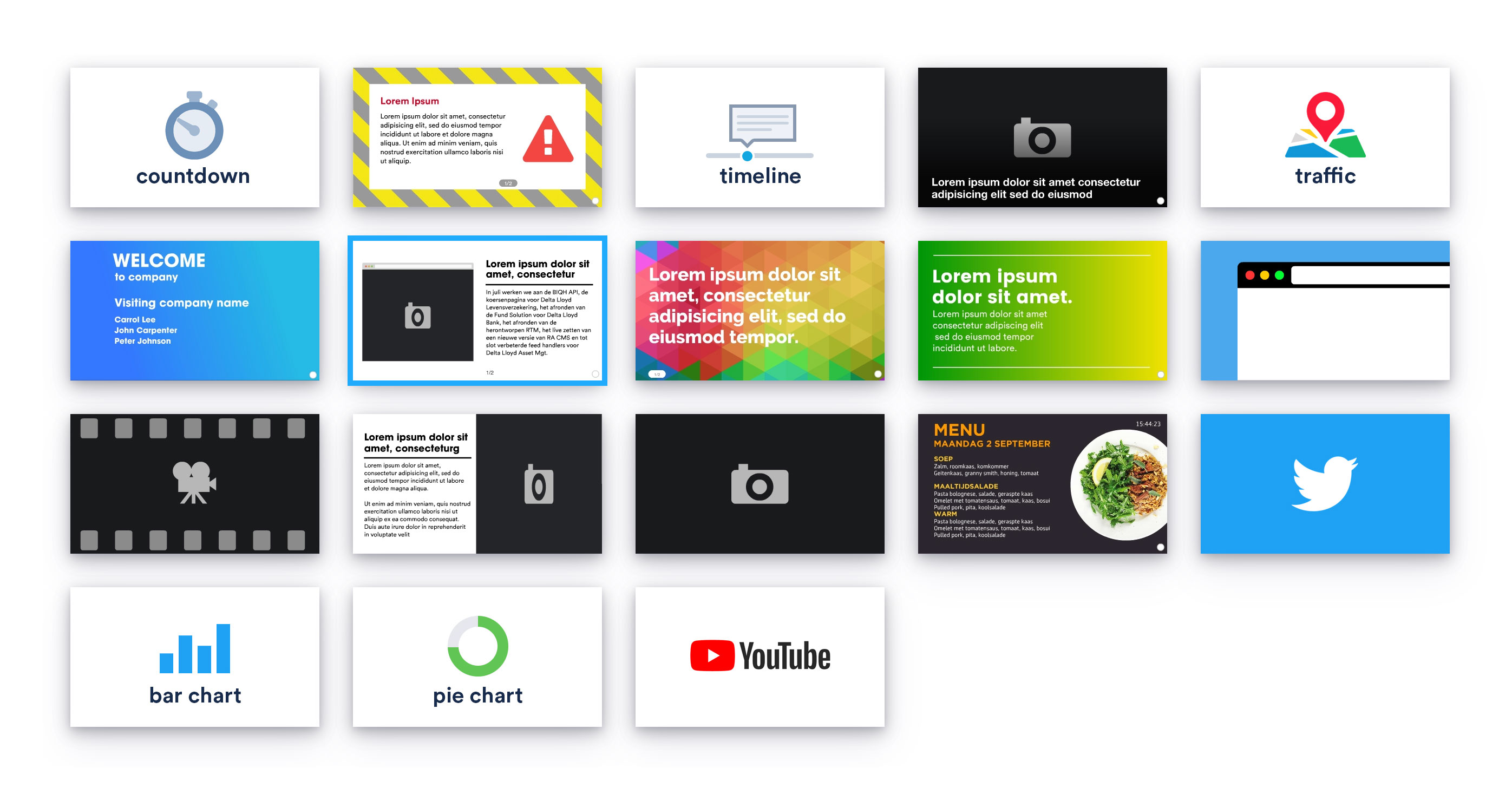
Add content
You can add text, images or video. Some templates have only a title and text. Other templates have more fields, for example text with an image. The text that you type shows immediately in the preview.
Each field has a maximum number of characters. The template sets the font and the font size. You cannot change them. Each template has different fields, because each template has a different function.
Add images
Many templates can have an image. A camera symbol in the template example shows this. The dark box shows the area for the image. An image can be next to text or fill the full screen.
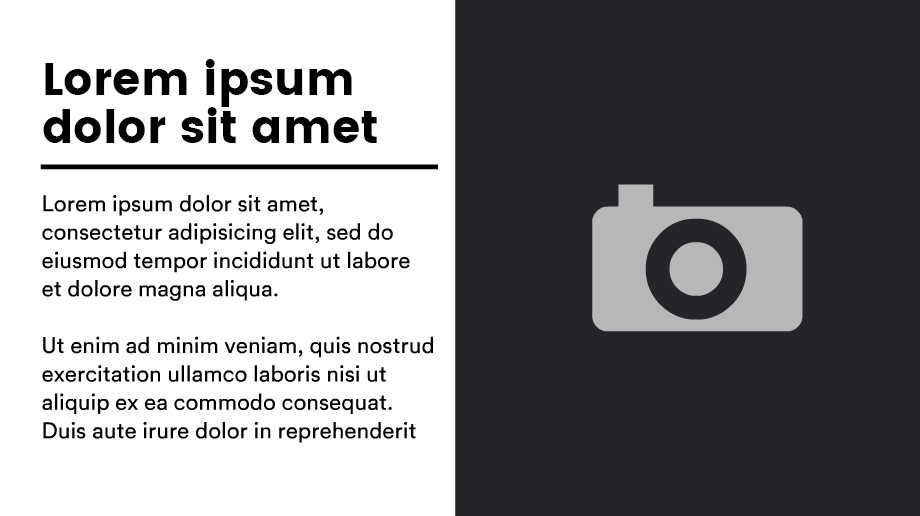
- Select a template with an image.
- Click the image button.
- Select an image from the network or from your computer. Use a .jpg, .png or .gif file.
The image shows immediately in the template. The image fills the image box. You can now save the slide.
Edit the image
Use the image editor to change the position or the zoom of the image:
- Click Edit image. The dialog shows the original image.
- Move the slider to change the size of the image.
- Drag the image with the mouse to the correct position.
An animated .gif file shows as a static image. It does not move.
Add video
Some templates can have a video. A film camera symbol in the template example shows this. Most video templates show the video on the full screen. Some templates show the video in a small area next to text. The template example shows this.

- Select a template with a video.
- Click the video button.
- Select a video file from the network or from your computer.
- Save the slide.
MediaMyne accepts all usual video formats, for example .mp4, .mov, .wmv, .avi, .flv, .f4v, .ogg and .m4v. Other formats are also possible.
After you save the slide, MediaMyne converts the video automatically. The slide is available when the conversion is complete. This takes 1 to 5 minutes. The time depends on the file size and the length of the video. During the conversion, the slide has the status Processing.

You can log out during the conversion. This does not stop the process. The slide then shows automatically on the selected screens.
The player always plays the full video. For this reason, you cannot set the duration for a video template. After the conversion, the overview shows an example of the video. Use the video controls in the preview to play the video.
Player preview
Directors and EditorsOpen the player preview from the main menu. Click a player on the left side of the screen. The preview of this player shows on the right side.
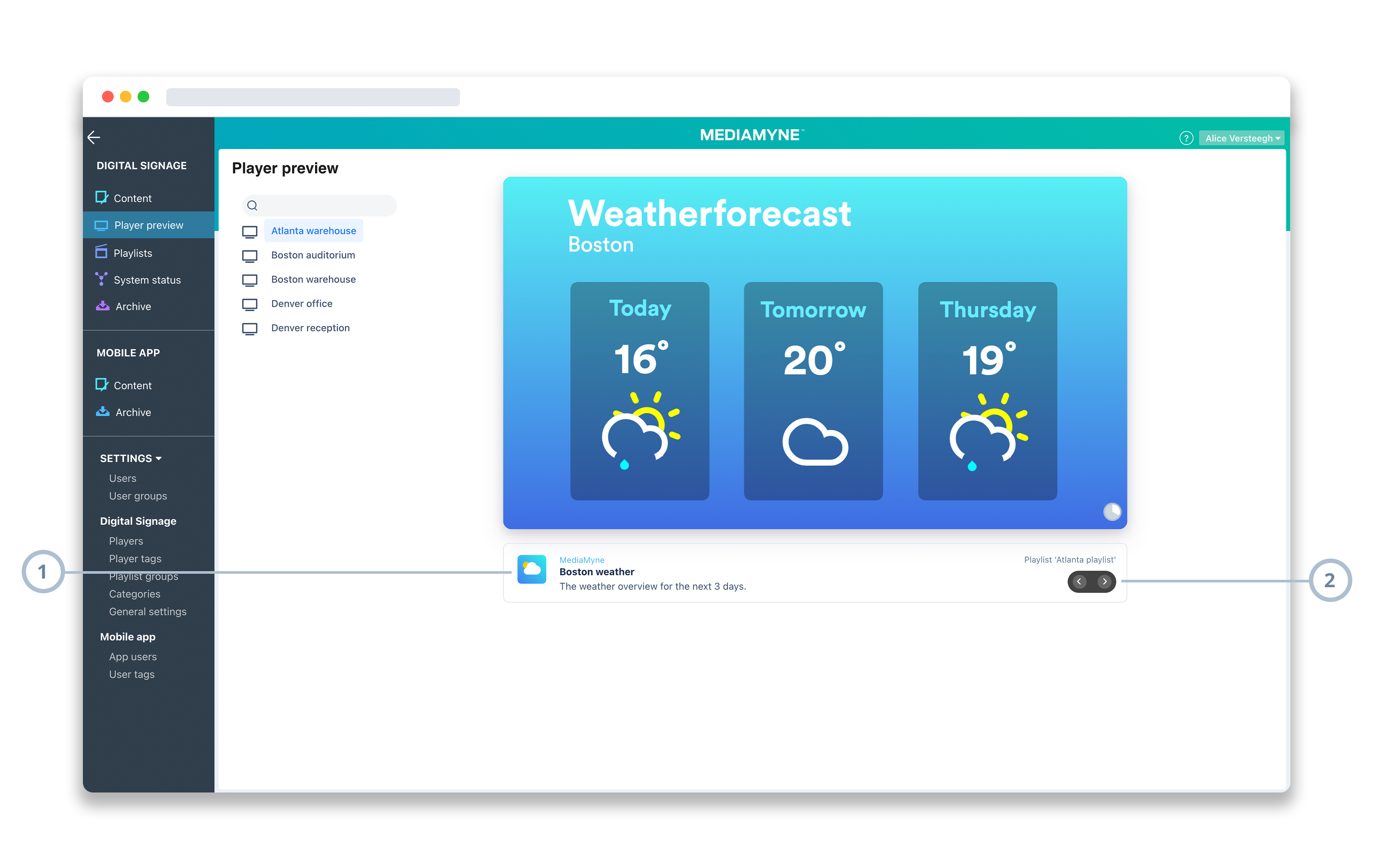
- Playlist item information Shows the name, the author and the description of the slide. For an app, for example weather or news, it shows the name of the app.
- Manual navigation Use the back and forward buttons to go through the playlist.
Playlists
Directors onlyOn the content management page, you decide what to publish, how it looks, and when and where it shows. On the playlist page, you decide the order of the content and how frequently each part shows.
Only Directors can change playlists. The page has these parts:
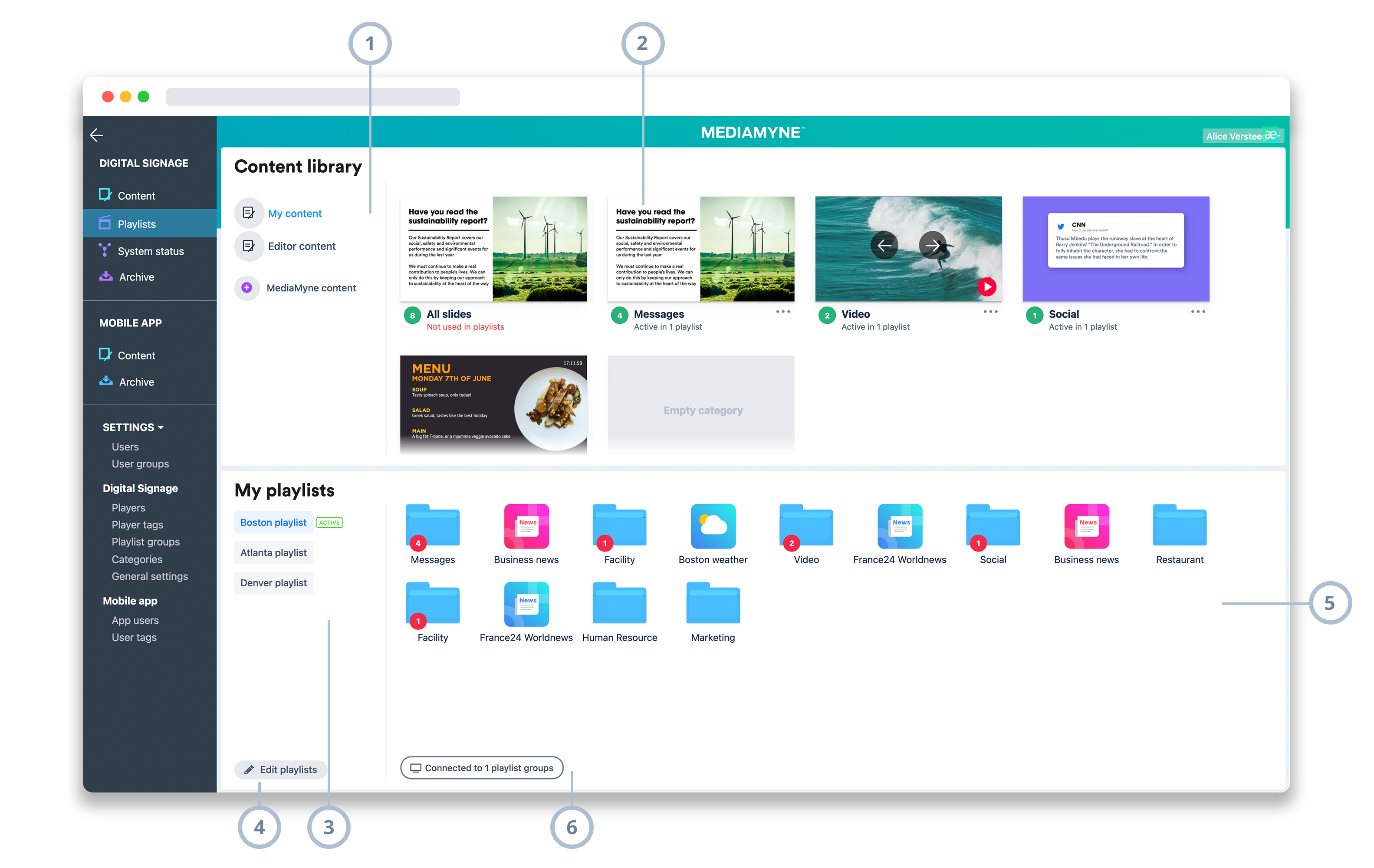
- Content library The tabs at the top select the type of content: My content, Editor content and the apps, for example news, weather and traffic information. By default, My content is selected. Your authorization controls which tabs you can see.
- Categories and apps The top half of the page shows the categories or apps. Each category shows its number of slides and the number of playlists that use it, for example “Active in 1 playlist”. Use the filters All slides and Not used in playlists to find categories that are not in a playlist. Drag a category or app into the playlist below, or double-click it.
- My playlists Shows all playlists. Click a playlist to edit it. Each playlist shows on how many players it plays, for example “Active on 7 players”, or Not connected.
- Edit playlists Make a new playlist or rename a playlist.
- Playlist Shows the selected playlist. A playlist is a list of categories and apps. You can move, add and delete items.
- Connect playlists Opens the dialog to connect playlists to playlist groups. The button shows the number of connected playlist groups, for example “Connected to 2 playlist groups”. Each player has a playlist group.
What is a playlist?
A playlist is a set of categories and apps that the player shows. The player shows the items in the order of the list, from top left to bottom right.
- The player shows 1 slide from each category. Then it goes to the next category.
- If a slide is not published on this player, the player skips it. It then shows the next slide from that category.
- For an app, for example the news app, the player shows 1 news item. Then it goes to the next item in the playlist.
- Some apps, for example the weather forecast, show the same content on each screen.
Make a playlist
- Click Edit playlists 4 at the bottom left.
- Type a name and save the playlist.
- Drag categories or apps into the playlist. You can also double-click an item to add it.
- To remove an item, drag it out of the playlist.
Select a playlist in the list on the left 1 to edit it. Use Edit playlists 4 to make, rename or delete a playlist.
A player shows only the categories in its playlist. For example, a slide is in the category “Messages” and is published on the player “Office”. The slide shows only if the category “Messages” is in the playlist of the player “Office”.
Categories
There are 2 main types of categories:
- Slide categories. These contain the slides that users make on the content page. The slides of Directors are in My content. The slides of Editors are in Editor content.
- Apps. These get new content automatically from external sources, for example news and weather.
The MediaMyne apps get new data each day. You do not have to do anything. News and weather are interesting for most viewers. Use them in the correct quantity to make your presentation more varied. If there are no active slides, the screen still shows content.
Connect a playlist to players
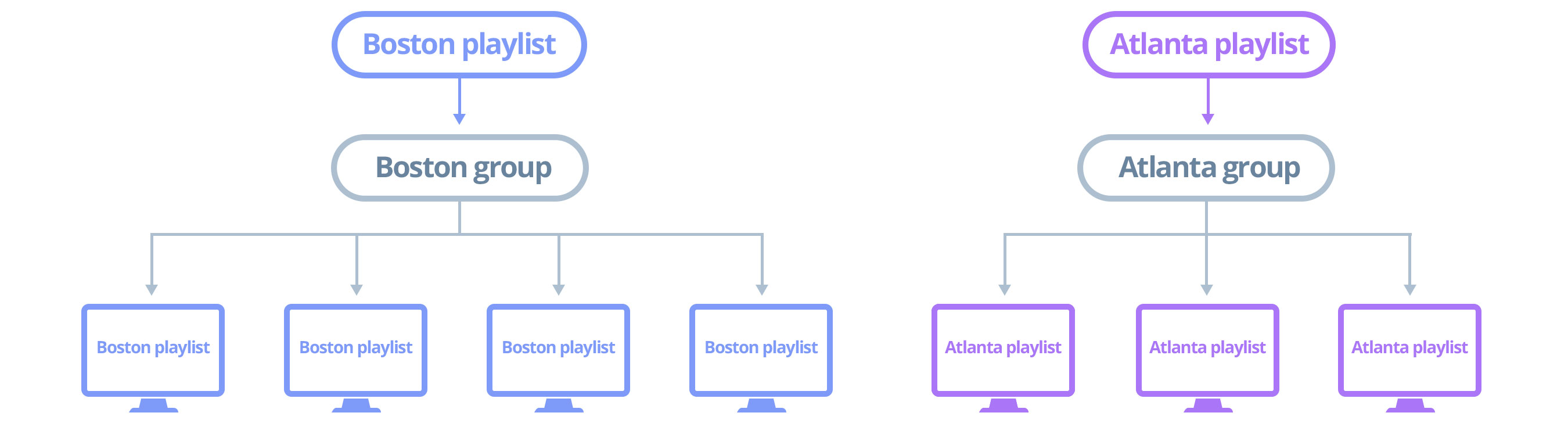
Before a player can show a playlist, you must have 1 or more playlist groups. Make playlist groups in the settings. A playlist group connects players to a playlist. All players in a group show the same playlist. A playlist that is connected to 1 or more playlist groups is active.
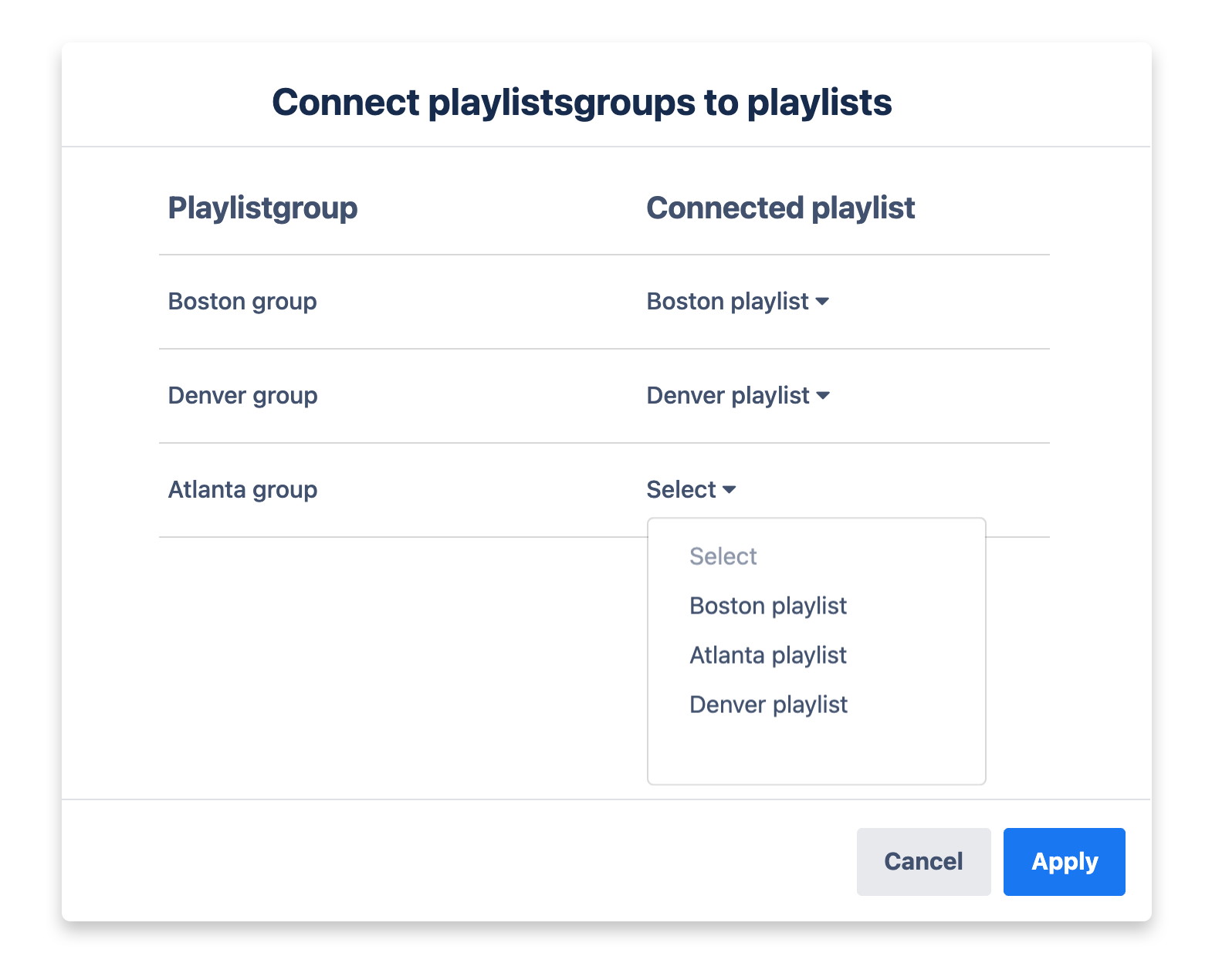
- Click the playlist groups button 6. The playlist groups dialog opens.
- For each playlist group, select the playlist.
- Save the settings.
For example, you connect “Boston playlist” to “Boston group”. All players in “Boston group” then show “Boston playlist”.
Archive
Directors and EditorsThe archive contains:
- Slides that a user moved to the archive.
- Slides that expired. A slide expires when its end date is in the past. MediaMyne then moves it to the archive automatically.
You can keep a slide in the archive, delete it permanently or move it back to the slides overview.
- Select the slides in the archive overview.
- At the bottom of the page, click Retrieve or Delete.
A retrieved slide goes back to the slides overview as a Concept. MediaMyne restores all original settings, but not the publication dates. You can then publish the slide again.
Your broadcast
For a good broadcast, the screens must always be on and connected to the internet. To check this, open System status in the main menu. This page shows all screens in your account.
All users can open this page. The player tags in your user settings control which players you see.
Status of your screens
At the top, the page shows the number of players that are online and offline. Use these buttons to filter the list by status.
- Players that operate correctly are online.
- Players with a technical problem are offline. The status tells you how long the player is offline, for example “8 days offline”.
Player information
The list shows this information for each player. Use it to find problems.
| Column | Meaning |
|---|---|
| Player | The name of the player. |
| Activation | The activation code of the player. |
| Status | Online, or how long the player is offline. |
| Last connection | The last time that MediaMyne received a signal from the player. |
| Start player | The date and time when the player software started the last time. |
| Activation (second column) | The date and time when the player was activated. |
| Player version | The version of the player software. |
| Free space (GB) | The free disk space. If the free disk space is less than 1 GB, it shows in red. |
| OS | The operating system of the player, for example Windows, macOS or Android. |
| Monitor icon | Shows that the player is monitored. Only monitored players are in the offline player report. Refer to Reporting. |